A developer building a CRM sync makes the first call to the Meeting AI Insights API, expecting the response to carry the meeting summary and its action items. What comes back is five metadata fields and no content at all — the meetingNotes and actionItems arrays are absent, because the summary and tasks only appear in a *second* call. Before you write that second request, here is the data model you are actually working with, and why it differs from what most documentation and community content describes.
After reading this post, you will be able to:
✅ Identify the three data types callAiInsight exposes and know exactly what each one contains
✅ Execute the two-call retrieval pattern correctly — the list call for metadata, the get call for content
✅ Configure delegated and application permissions, including the Application Access Policy requirement for background services
✅ Design an integration that accounts for the ownerDisplayName string-versus-identity gap and the Global-service-only constraint
Three Data Types, Not Four — and the One the Brief Got Wrong
The resource type is callAiInsight. It is not meetingInsight, and it is not meetingsInsight — those names appear in some briefs and community write-ups, and the documentation URL for a meetinginsight resource returns HTTP 404. There is no such resource. Every path, permission, and property in this post refers to callAiInsight, the resource documented in the Microsoft 365 Copilot extensibility API reference.
The Teams meeting AI insights APIs went generally available in Microsoft Graph v1.0 in December 2025. The API exposes structured, AI-generated intelligence derived from a transcribed Teams meeting — organised notes, named action items, and mention attribution — without you building or hosting any language-processing pipeline of your own. That is the real value: the processing has already happened by the time you call.
A callAiInsight object exposes three data types, not four. There is no “follow-up questions” field. No property named followUpQuestions, or anything equivalent, exists in callAiInsight or in any of its sub-resources as of August 2026. If you have read a description that lists follow-up questions as a retrievable field, that description is inaccurate. The three data types that do exist are meetingNotes, actionItems, and viewpoint.mentionEvents.
meetingNotes — the hierarchical AI summary. This is a collection of meetingNote objects. Each note has a title, a text body, and a subpoints collection of nested meetingNoteSubpoint objects, so the summary is structured rather than a flat block of prose. You get topics with sub-topics underneath them, ready to render as a nested outline.
actionItems — tasks with a named owner. This is a collection of actionItem objects. Each has a title, a text body describing the task, and an ownerDisplayName. Read that last field carefully: ownerDisplayName is a plain display name string. It is not a Graph user ID, an object ID, or a user principal name. This distinction matters enormously the moment you try to assign a task in a downstream system, and it gets its own treatment later in this post.
viewpoint.mentionEvents — caller-specific mention context. The viewpoint property is a callAiInsightViewPoint object whose single property, mentionEvents, is a collection of mentionEvent objects. Each mention event carries an eventDateTime (the timestamp of the mention in the transcript), a speaker identity set (with user.id, user.displayName, user.userIdentityType, and user.tenantId), and a transcriptUtterance — the exact transcript text containing the mention.
Note:
viewpointis caller-specific. ThementionEventsreturned are those where the calling user was mentioned, so two different callers requesting the same insight object will see differentviewpointdata. Do not treatmentionEventsas a complete, meeting-wide list of every mention — it is scoped to the caller.
One more boundary is worth drawing before you go further: this API returns intelligence *derived from* the transcript, not the transcript itself. The contentCorrelationId property is a link to the corresponding callTranscript resource — the raw verbatim text lives there, in a separate API, not in the callAiInsight response. If you need the full transcript, you follow contentCorrelationId to callTranscript. If you need the summary, action items, and mentions, you stay with callAiInsight.
Here is the full data model at a glance.
| Data type | Sub-fields | What it is used for |
|---|---|---|
meetingNotes (meetingNote collection) | title, text, subpoints (meetingNoteSubpoint collection) | Hierarchical AI-generated summary — render as a nested outline of topics and sub-topics |
actionItems (actionItem collection) | title, text, ownerDisplayName (plain string) | Task descriptions with a named owner — feed into task-creation flows (see the resolution gap below) |
viewpoint.mentionEvents (mentionEvent collection) | eventDateTime, speaker (identitySet), transcriptUtterance | Caller-specific mention attribution — surface where and by whom the caller was referenced |
contentCorrelationId (metadata, not a data type) | String linking to callTranscript | Follow this to the separate transcript resource — the raw transcript is not in this API |
*What this means for you: build your integration against three data types — meetingNotes, actionItems, and viewpoint.mentionEvents — and drop any assumption about a follow-up-questions field or a transcript embedded in the response.*
Two Calls to Get One Meeting’s Intelligence — and What the First Call Withholds
The single most common mistake with this API is expecting one call to return everything. It does not. Retrieving a meeting’s intelligence is a two-call pattern: a list call that returns metadata only, followed by a get call that returns the content.
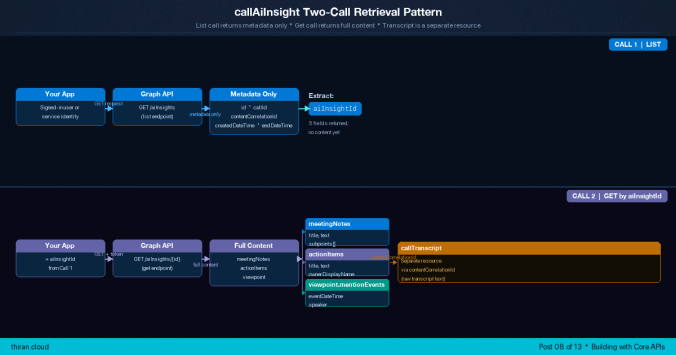
Step 1 — List the insight objects for a meeting. This call returns a collection of callAiInsight objects, but with metadata only. The fields you get are id, callId, contentCorrelationId, createdDateTime, and endDateTime. The meetingNotes and actionItems arrays are not returned by the list endpoint — they are absent from every object in this response.
GET https://graph.microsoft.com/v1.0/copilot/users/{userId}/onlineMeetings/{onlineMeetingId}/aiInsights HTTP/1.1Host: graph.microsoft.comAuthorization: Bearer {token}
The list response contains only metadata for each insight object:
{ "@odata.context": "https://graph.microsoft.com/v1.0/$metadata#copilot/users('b935e...')/onlineMeetings('YTc3...')/aiInsights", "@odata.count": 1, "value": [ { "id": "VjEj...", "callId": "af630fe0-04d3-4559-8cf9-91fe45e36296", "contentCorrelationId": "bc842d7a-2f6e-4b18-a1c7-73ef91d5c8e3", "createdDateTime": "2024-05-27T08:17:10.7261294Z", "endDateTime": "2024-05-27T08:17:10.7261294Z" } ]}
The list endpoint returns a default page size of 20 items and paginates with @odata.nextLink. It supports the $select OData query parameter. You take the id of the object you want — this is the aiInsightId — and use it in the second call.
If you do not already hold the meeting’s onlineMeetingId, you can retrieve it by filtering the onlineMeeting API on the meeting’s JoinWebUrl:
GET https://graph.microsoft.com/v1.0/me/onlineMeetings?$filter=JoinWebUrl eq '{joinWebUrl}' HTTP/1.1Host: graph.microsoft.comAuthorization: Bearer {token}
The id in that response is the onlineMeetingId you place in the aiInsights path.
You may see more than one callAiInsight object for a single meeting. If a meeting has multiple transcript sessions — for example, because transcription was stopped and restarted — the list endpoint may return multiple insight objects, each with a different contentCorrelationId. Use createdDateTime and endDateTime to identify the object relevant to your scenario. For a single-session meeting, the typical case is one insight object.
💡 Insight: The list endpoint exists to page efficiently over meetings that may hold multiple insight objects — but for the common single-session meeting it returns exactly one result. The discipline of the two-call pattern is worth internalising before you build: the list call tells you *which* insight objects exist; only the get call tells you what is *in* them.
Step 2 — Get the full content of one insight object. With the aiInsightId from step 1, you make a second call to retrieve the complete callAiInsight object, including meetingNotes, actionItems, and viewpoint.
GET https://graph.microsoft.com/v1.0/copilot/users/{userId}/onlineMeetings/{onlineMeetingId}/aiInsights/{aiInsightId} HTTP/1.1Host: graph.microsoft.comAuthorization: Bearer {token}
This is where the content appears. The get response carries the same metadata as the list response plus the three data types:
{ "id": "Z2HWbT...", "callId": "af630fe0-04d3-4559-8cf9-91fe45e36296", "contentCorrelationId": "bc842d7a-2f6e-4b18-a1c7-73ef91d5c8e3", "createdDateTime": "2024-05-27T08:17:10.7261294Z", "endDateTime": "2024-05-27T08:32:10.7261294Z", "meetingNotes": [ { "title": "Introducing Project Objectives and Key Stakeholders", "text": "...", "subpoints": [{ "title": "Discussion on action items", "text": "..." }] } ], "actionItems": [ { "title": "Finalize Project Timeline", "text": "Review and finalize the project timeline...", "ownerDisplayName": "Bella Smith" } ], "viewpoint": { "mentionEvents": [ { "eventDateTime": "2024-05-21T09:00:00", "transcriptUtterance": "We need to get approval from Sarah Johnson before proceeding...", "speaker": { "user": { "id": "9a7608d3-53e4-4a92-804f-ef43f1e5f5b5", "displayName": "John Smith", "userIdentityType": "aadUser", "tenantId": "d1aeb56e-..." } } } ] }}
The get endpoint also supports $select, so you can request only the data types you need. Note again that viewpoint is caller-specific — the mentionEvents reflect the calling user’s mentions, so the content of this branch depends on whose token made the request.
✅ Quick win: Run the list call against any recently concluded, transcribed meeting where you are the organiser. Even an empty collection is useful — it tells you whether your
onlineMeetingIdpath is correctly formed and whether your token carries the right scope, before you invest in the second call.
*What this means for you: architect every retrieval as list-then-get — never assume the list response is enough, and always carry the aiInsightId forward to the call that actually returns content.*
One Permission Name, Two Access Models, and an Application Policy the Reference Docs Disagree On
Both delegated and application access to this API use the same permission: OnlineMeetingAiInsight.Read.All. There is no separate application-only scope and no higher-privileged variant. What differs is not the permission name but the setup around it.
Delegated access requires a signed-in user. The permission requires admin consent. Personal Microsoft accounts are not supported — this is a work-or-school-account API only.
Application access allows a daemon or background service to call the API on behalf of a specific user, with no interactive sign-in. This is the path you want for a service that runs after meetings end. It carries an additional requirement: an Application Access Policy. A tenant administrator creates the policy with Teams PowerShell (New-CsApplicationAccessPolicy) and grants it to the target user or users, or to the whole tenant (Grant-CsApplicationAccessPolicy). The {userId} in the API path must match a user covered by the granted policy. Changes to access policies can take up to 30 minutes to take effect, so build that propagation delay into your rollout and testing plan.
| Access model | Permission name | Admin consent | Application Access Policy |
|---|---|---|---|
| Delegated (work/school account) | OnlineMeetingAiInsight.Read.All | Required | Not applicable |
| Delegated (personal Microsoft account) | Not supported | — | — |
| Application | OnlineMeetingAiInsight.Read.All | Required | Required — created and granted via Teams PowerShell; up to 30 minutes to take effect |
One documentation wrinkle is worth naming so you don’t stumble on it separately: the general Application Access Policy reference page [Ref 10] — last updated August 2025, four months before this API reached GA — lists its supported permissions as OnlineMeetings.Read.All, OnlineMeetings.ReadWrite.All, OnlineMeetingArtifact.Read.All, OnlineMeetingTranscript.Read.All, OnlineMeetingRecording.Read.All, and VirtualEvent.Read.All. OnlineMeetingAiInsight.Read.All isn’t on that list. It’s a stale table, not a functional gap: the Meeting AI Insights API’s own endpoint documentation [Ref 2] — updated April 2026, after GA — states plainly that application access requires an Application Access Policy for this permission, with no caveat. Treat the endpoint documentation as authoritative for this permission; the general policy page simply hasn’t caught up.
*What this means for you: both access paths are production-ready. Pick delegated access for interactive scenarios, application access for unattended services — and set up the Application Access Policy exactly as documented, without waiting on the general reference page to list the permission by name.*
Empty Collections Before Errors — The Conditions That Silently Block Intelligence
The trap with this API is not error handling. It is that several conditions return an empty collection rather than a descriptive error. Your code succeeds, gets nothing back, and you have no HTTP status to tell you why. Here are the conditions that silently produce no data.
Transcription must be enabled. AI insights are generated only when transcription or recording is enabled for the meeting. If a meeting has no transcript, there are no callAiInsight objects, and the list endpoint returns an empty collection with no error. Transcription can be turned on by the organiser in meeting options, set to auto-transcribe programmatically with PATCH /v1.0/users/{userId}/onlineMeetings/{onlineMeetingId}, or enabled by default through a Teams admin meeting policy.
Channel meetings are not supported. A list call for a channel meeting returns empty. The supported meeting types are private scheduled meetings, town halls, webinars, and Meet Now sessions.
Insights take up to four hours to appear. Insights are generated only after the meeting ends, and they may take up to four hours to become available. An integration that calls the list endpoint the instant it receives a meeting-end signal will often get an empty collection — not because anything is wrong, but because the insights are not ready yet. Design for retry with backoff, not immediate availability.
Meetings expire. The API only works for meetings that have not expired. Teams scheduled meetings expire approximately 60 days after their scheduled time; Meet Now meetings expire 60 days after the link was created. Past that window, the API returns nothing. (Section on Global service and licensing below treats this as a data-retention design concern.)
There is no real-time access. Insights are post-meeting only. There is no live or in-meeting path to this data.
| Condition | What happens | How to verify |
|---|---|---|
| Transcription not enabled | Empty collection, no error | Confirm transcription is on via meeting options, PATCH onlineMeetings, or admin policy |
| Channel meeting | Empty collection, no error | Confirm the target meeting is a private scheduled meeting, town hall, webinar, or Meet Now |
| Called too soon after the meeting | Empty collection for up to 4 hours | Retry with backoff; do not treat an early empty result as failure |
| Meeting expired (~60 days) | No data returned | Run integrations within the expiration window; check createdDateTime against the current date |
| Expecting live data | Nothing — no real-time path exists | Trigger only on meeting-end, never mid-meeting |
*What this means for you: instrument your integration to distinguish “not ready yet” from “will never come” — an empty collection can mean either, and only your knowledge of these conditions, not the HTTP response, tells you which.*
Global Service Only — Licensing, National Clouds, and the 60-Day Data Window
Before you commit this API as the foundation for an integration, check two gates: where it runs, and who has to be licensed.
It runs in the Global service only. This is not a limitation to note in passing — it is an architectural exclusion. The API is not available in GCC High, DOD, or China (21Vianet).
| Global service | US Government L4 (GCC High) | US Government L5 (DOD) | China (21Vianet) |
|---|---|---|---|
| Yes | No | No | No |
If your deployment target is a US government cloud, this API is not an option, and no roadmap item changes that as of August 2026. Plan a different approach rather than waiting for availability.
Every queried user must have a Microsoft 365 Copilot license. All users of applications that call this API must hold a Microsoft 365 Copilot license — this covers every user whose meeting data you query, not only the calling identity. There is no usage-based billing path and no evaluation mode for this API. Unlike some other Copilot APIs, Meeting AI Insights has no Copilot Credits option: it is licensed access or no access.
Treat the 60-day expiration as a data-retention window. Because scheduled meetings expire roughly 60 days after their scheduled time and Meet Now meetings 60 days after link creation, the intelligence for a meeting becomes unreachable after that window. Design integrations to run soon after the meeting ends — hours or a few days later — not weeks later. If your workflow depends on data that might be 60 days old, capture and store it in your own system well before expiration.
Note: This API is documented across both the Microsoft Teams developer documentation and the Microsoft 365 Copilot extensibility API reference. Verify at app registration time which Terms of Use apply to your integration — the standard Microsoft Graph Terms of Service or the Microsoft 365 Copilot APIs Terms of Use — as the Teams meeting insights documentation does not reference the Copilot APIs Terms of Use page.
*What this means for you: confirm your deployment is in the Global service and that every queried user is Copilot-licensed before writing a line of integration code — both are hard gates that no amount of correct code works around.*
Three Integration Patterns and the Display Name That Is Not a User ID
Microsoft’s own documentation names three integration patterns for this API. Each maps a subset of the three data types into a downstream destination.
Pattern 1 — CRM sync. A backend service listens for meeting-end events, runs the two-call pattern, extracts meetingNotes and actionItems, and maps them onto CRM fields — meeting summary into the account activity record, action items into follow-up tasks. Optionally it posts a Teams message card confirming the update.
Pattern 2 — Project management connector. A bot or background job queries Graph for concluded meetings, fetches the insights, classifies the content into decisions, tasks, and risks, and creates work items in Azure DevOps, Jira, Planner, or Notion. This is the pattern where the ownerDisplayName gap bites.
The actionItem.ownerDisplayName field is a plain display name string. There is no ownerId, object ID, or UPN anywhere in the actionItem resource. If your connector needs to assign a task to a specific user in a downstream system, a display name alone will not do it — those systems key on identities, not names. You have to resolve the display name to a user identity with a separate Graph call:
GET https://graph.microsoft.com/v1.0/users?$filter=displayName eq '{ownerDisplayName}' HTTP/1.1Host: graph.microsoft.comAuthorization: Bearer {token}
That resolution is not collision-proof. Two users with the same display name produce an ambiguous result, and at enterprise scale identical display names are common. The API gives you no more specific identifier to disambiguate with, so your integration needs its own tie-breaking logic — department, matching against meeting participants, or a human confirmation step — before it writes an assignment into a system of record.
💡 Insight:
ownerDisplayNameis not a user identity. Every integration that assigns tasks downstream needs a name-resolution step the official documentation does not describe — and because display-name matching is fuzzy, that step is a genuine design decision, not a mechanical lookup. Budget for it early.
Pattern 3 — Executive briefing. A digital assistant retrieves insights after designated executive meetings conclude, prioritises key decisions and blockers, and formats meetingNotes into a briefing card posted to a Teams chat or sent as email.
Two practical notes on building these. First, which access model each pattern uses depends on how it runs: patterns that operate as unattended background services want application access, which is subject to the Application Access Policy verification flagged earlier; patterns driven by a signed-in user can use delegated access directly. Second, you do not have to start from scratch — Microsoft provides official sample apps for the Meeting AI Insights API in both Node.js and Python in the OfficeDev/Microsoft-Teams-Samples repository, retrieving summaries, action items, and mentions and rendering them in a Teams dialog.
*What this means for you: choose the pattern that matches your destination, and if it assigns tasks to real people, design the ownerDisplayName-to-identity resolution step before anything else — it is the part most likely to produce wrong results in production.*
Nine Checks Before Your Integration Sees Real Meeting Data
Consolidate every gate from this post into one pre-go-live pass. If any of these fails, your integration returns empty collections or wrong assignments rather than a clear error.
– [ ] Licensing: A Microsoft 365 Copilot license is assigned to every user whose meeting data will be queried — not only the calling identity.
– [ ] Transcription: Transcription is enabled for target meetings, via meeting options, PATCH onlineMeetings, or Teams admin policy.
– [ ] Meeting type: Target meetings are not channel meetings. Confirmed supported types are private scheduled meetings, town halls, webinars, and Meet Now.
– [ ] App registration: The app is registered with OnlineMeetingAiInsight.Read.All and admin consent is granted.
– [ ] Application Access Policy (application access only): The policy is created and granted, coverage is verified for the target users, and the up-to-30-minute propagation window is accounted for — and the Application Access Policy documentation discrepancy for this permission is verified with Microsoft before production.
– [ ] National cloud: The deployment environment is the Global service. GCC High and DOD are not supported.
– [ ] Data window: The integration runs within the ~60-day meeting expiration window, before insights become unreachable.
– [ ] Owner resolution: For task-assignment integrations, an ownerDisplayName-to-user-identity resolution strategy is defined, including a tie-breaker for duplicate display names.
– [ ] Retry logic: Retry with backoff is in place for the up-to-4-hour insight generation delay — the list endpoint returns empty, not an error, during this window.
Note: No API-specific rate ceiling is documented for the Meeting AI Insights API. Standard Microsoft Graph throttling applies — HTTP 429 responses include a
Retry-Afterheader. Implement exponential backoff on 429 responses; do not code against an assumed fixed rate limit.
*What this means for you: walk this checklist end to end before your first production run — most failures with this API are silent, so the checklist, not runtime errors, is what catches them.*
Now What? Your Next Three Steps
1. Run the two-call pattern against a test meeting — start with a delegated token, call the list endpoint for a recently concluded transcribed meeting where you are the organiser, then call the get endpoint with the first aiInsightId returned and inspect the three data types.
2. Audit your target meetings for compatibility — confirm transcription is enabled, channel meetings are excluded, every queried user is Copilot-licensed, and the deployment sits in the Global service.
3. Read Post 09 (AI Interactions Change Notifications) — to replace polling with an event-driven trigger that fires when a meeting ends, so your integration reacts instead of repeatedly checking.
How to Navigate This Series
This series runs 13 posts across 3 phases, moving from API landscape and governance foundations through the core Copilot API surfaces into agent architecture and extensibility.
– Phase 1 — Foundations and Governance (Posts 01–04): API landscape orientation (Post 01), authentication and permissions deep-dive (Post 02), rate limits and national cloud readiness (Post 03), and usage reporting (Post 04). – Phase 2 — Building with Core APIs (Posts 05–09): Package Management API for admins (Post 05), Retrieval API (Post 06), Chat API (Post 07), this post on Meeting AI Insights (Post 08), and AI Interactions Change Notifications (Post 09). – Phase 3 — Agents and Extensibility (Posts 10–13): Connectors overview, declarative versus custom engine agents, Copilot Studio, and integration patterns including SPFx.
By role:
– New to the series: → Post 01 → Post 02 → Post 07 → Post 08 – Building post-meeting automation: → Post 02 → Post 07 → Post 08 → Post 09 – Evaluating architecture and governance: → Post 01 → Post 08 → Post 09
Post 07 (Chat API) covered programmatic Copilot invocation, where a call returns a Copilot conversation response. This post covered structured meeting intelligence, which is a different shape of data entirely — extracted, typed, and retrieved after the fact rather than generated in a conversation. For the authentication mechanics behind the delegated flow and Application Access Policies referenced here, see Post 02.
The immediate next post is Post 09 — AI Interactions Change Notifications, which shows how to trigger integrations automatically on meeting-end events rather than polling the list endpoint on a timer — the natural complement to the integration patterns in this post.
References
All claims in this post trace to the following official Microsoft documentation:
- 1. Graph APIs to fetch meeting insights (Teams developer docs — comprehensive overview, licensing, prerequisites, supported meeting types, timing, integration patterns) — https://learn.microsoft.com/en-us/microsoftteams/platform/graph-api/meeting-transcripts/meeting-insights
- 2. List aiInsights (v1.0 + beta endpoint reference; permissions; national cloud availability; page size) — https://learn.microsoft.com/en-us/microsoft-365/copilot/extensibility/api/ai-services/meeting-insights/onlinemeeting-list-aiinsights
- 3. Get callAiInsight (v1.0 + beta endpoint reference; permissions) — https://learn.microsoft.com/en-us/microsoft-365-copilot/extensibility/api/ai-services/meeting-insights/callaiinsight-get
- 4. callAiInsight resource type (top-level properties,
contentCorrelationIdlink tocallTranscript) — https://learn.microsoft.com/en-us/microsoft-365/copilot/extensibility/api/ai-services/meeting-insights/resources/callaiinsight - 5. actionItem resource type (
title,text,ownerDisplayName) — https://learn.microsoft.com/en-us/microsoft-365/copilot/extensibility/api/ai-services/meeting-insights/resources/actionitem - 6. meetingNote resource type (
title,text,subpoints) — https://learn.microsoft.com/en-us/microsoft-365/copilot/extensibility/api/ai-services/meeting-insights/resources/meetingnote - 7. callAiInsightViewPoint resource type (
mentionEvents) — https://learn.microsoft.com/en-us/microsoft-365/copilot/extensibility/api/ai-services/meeting-insights/resources/callaiinsightviewpoint - 8. mentionEvent resource type (
eventDateTime,speaker,transcriptUtterance) — https://learn.microsoft.com/en-us/microsoft-365/copilot/extensibility/api/ai-services/meeting-insights/resources/mentionevent - 9. What’s New Archive — December 2025 GA announcement — https://learn.microsoft.com/en-us/microsoft-365/copilot/extensibility/whats-new-history
- 10. Application Access Policy for online meetings (
New-CsApplicationAccessPolicy,Grant-CsApplicationAccessPolicy, up-to-30-minute propagation) — https://learn.microsoft.com/en-us/graph/cloud-communication-online-meeting-application-access-policy - 11. Limits and specifications for Microsoft Teams (meeting expiration) — https://learn.microsoft.com/en-us/microsoftteams/limits-specifications-teams#meeting-expiration
- 12. Meeting AI Insights bot code sample (Node.js + Python) — https://learn.microsoft.com/en-us/samples/officedev/microsoft-teams-samples/officedev-microsoft-teams-samples-meetings-ai-insights-bot-python/