A maker follows a tutorial titled “Copilot Studio standalone,” expecting a richer set of capabilities than the environment in front of them shows. They spend twenty minutes hunting for a toggle to switch editions — external channels are greyed out, the GitHub Copilot harness is nowhere — and there is no toggle to find, because the product is one thing and their license tier decides what is available. In a parallel project, a second maker finishes an agent, clicks Publish, copies the Copilot Chat link, and sends it to their team, who all report the same thing: the agent does not appear. It was published to the Copilot Studio service, but it was never approved through the Agent Registry in the Microsoft 365 admin center — the step the tutorial ended one screen before. These are two of the most common operational gaps in Copilot Studio, and both are solvable, but only if your mental model of the product and of the publishing path is correct before you start building.
After reading this post, you will be able to:
- ✅ Explain Copilot Studio’s product identity correctly — one product, two licensing tiers — and what each tier enables for makers and for users
- ✅ Navigate the five authoring canvas areas (name/description, instructions, knowledge, topics, tools) with an accurate model of what each controls and where the real limits are
- ✅ Explain MCP integration in Copilot Studio — what GA means, what connecting to an MCP server does, and why the federated connector knowledge case is architecturally distinct
- ✅ Follow the complete publishing path for an org-wide agent, including the Agent Registry approval step in the Microsoft 365 admin center
One Product, Two License Tiers: Why the “Standalone vs Embedded” Framing Is Wrong
There is one Microsoft Copilot Studio product. It was called Power Virtual Agents until October 2023, when it was renamed as part of Microsoft’s Copilot branding alignment — the 2023 release wave 2 plan already references it as Microsoft Copilot Studio. What varies today is not a product edition but a licensing entitlement, and the widely circulated “standalone versus embedded” framing describes a distinction that does not exist in the product.
The Microsoft 365 Copilot User Subscription License includes limited Copilot Studio use rights: build agents for Microsoft 365 channels — Teams, Copilot Chat, Word, Outlook — under the Standard harness, at no additional charge, with interactions covered for users who also hold the Microsoft 365 Copilot license. A standalone Copilot Studio subscription is a separate purchase that unlocks the capabilities the M365 rights do not cover: publishing to external channels (public websites, mobile apps, social messaging platforms), access for non-licensed users, premium connectors beyond what Microsoft 365 Copilot includes, and the GitHub Copilot harness — the most capable harness option, purpose-built for reasoning-heavy agents that need to plan multi-step processes, invoke tools across connectors and MCP servers, and adapt when intermediate steps fail.
One more distinction resolves most of the remaining confusion: Agent Builder and the full Copilot Studio platform are not the same entry point. Agent Builder, reached from inside the Microsoft 365 Copilot app, is the simplified, no-manifest surface, and it always produces declarative agents (the taxonomy is Post 11’s subject — see Post 11). The full Copilot Studio platform, reached at copilot.microsoft.com or through the Power Platform admin center, provides the complete authoring surface this post maps, and can produce both declarative and custom engine agents. Makers who begin in Agent Builder and later need MCP, workflows as tools, or external channels can copy their agent to the full Copilot Studio platform — the official copy path preserves the agent’s core configuration and instructions for extension with advanced settings. This post focuses on the declarative path, the one for which Copilot Studio is the natural authoring environment.
Specific license pricing is out of scope here; the licensing matrix later in this post states what triggers charges and links to the official Microsoft Copilot Studio Licensing Guide.
What this means for you: before you design anything, match the capabilities your scenario needs against the tier you actually hold — if you need external channels, the GitHub Copilot harness, or non-licensed user access, confirm the standalone subscription is in place first, because no in-product toggle will grant them.
The Five Configuration Areas That Build a Complete Agent
Copilot Studio’s authoring canvas organizes an agent into five areas, and every other topic in this post maps onto one of them. Orienting to the five first makes the rest navigable.
Name and description are the agent’s identity, and they are not cosmetic. The orchestrator uses the name and description to decide when to invoke the agent in multi-agent scenarios, so short, distinct names improve orchestration accuracy.
Instructions are the system-prompt equivalent — the central directions the agent follows, written in plain prose rather than YAML or JSON. Typing `/` within the instructions references a specific resource: a tool, a topic, another agent, a variable, or a Power Fx expression. If the agent was created through natural language (“Create an agent that…”), Copilot Studio generates the initial instructions from the description, and the maker edits from there.
Knowledge sources are the grounding data the agent answers from, covered in the next section. Topics are authored conversation flows for deterministic dialog — the scripted, exact-response paths inherited from the Power Virtual Agents model and still supported, for cases where you need a precise reply to a specific input rather than a generative one. Tools are the external capabilities the orchestrator invokes based on conversation context, covered two sections down.
Developers working in the VS Code extension will see these areas reflected in the project file structure — `agent.mcs.yaml` as the main definition, alongside `knowledge/`, `topics/`, `workflows/` (which holds tools), and an `actions/` folder for Power Platform connectors. That last folder name is worth flagging now and explaining later: the project layout still says `actions/` even though the UI surface is now called “tools.”
What this means for you: learn the canvas as these five areas, not as a feature list — every limit, every connector, and every publishing decision in this post attaches to one of them, and knowing which one tells you where to look.
The Knowledge Sources That Ground an Agent — and the Limits Most Docs Leave Out
The knowledge area supports eight distinct source types. Most documentation lists them; far less of it states the limits you will actually hit, which is where planning goes wrong.
| Knowledge source | Connector model | Notes and limits |
|---|---|---|
| SharePoint and OneDrive | Tenant data | Max 25 site URLs per agent; each source up to 1,000 files, 50 folders, 10 subfolder levels; requires Dataverse search |
| Uploaded files | Direct upload | 512 MB per file; PDF, Word, Excel, PowerPoint; file count bounded by Dataverse storage |
| Copilot connectors (Graph connectors) | Synced / indexed | External data indexed into Microsoft Graph; same connector surface as Post 10 |
| Real-time connectors | Federated (MCP-based) | Retrieve content live via MCP without indexing; ServiceNow, Confluence, Jira, Azure DevOps |
| Public websites | Federated | Searches public sites indexed by Bing when Web Search is enabled |
| Azure AI Search | Synced | Custom search indexes |
| Dataverse tables | Tenant data | Includes Dynamics 365 and Power Apps data |
| Custom data APIs | Custom handler | Via the `OnKnowledgeRequested` trigger for a custom knowledge handler |
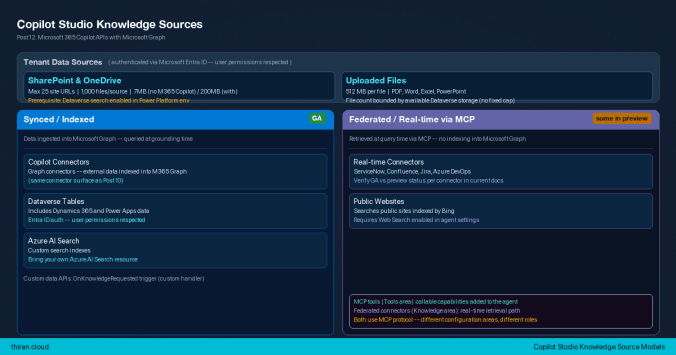
Two facts about SharePoint carry the most planning weight. First, a hard prerequisite: Dataverse search must be enabled in the Power Platform environment, or the source will not function. Second, file size depends on licensing — without a Microsoft 365 Copilot license, SharePoint files must be under 7 MB each; with a Microsoft 365 Copilot license and Tenant graph grounding enabled, the ceiling rises to 200 MB per file. Each SharePoint source is also capped at 1,000 files, 50 folders, and 10 levels of subfolders, and an agent can reference at most 25 SharePoint site URLs under generative orchestration.
✅ Quick win: Before you configure a SharePoint knowledge source, confirm Dataverse search is enabled in your Power Platform environment. It is a hard prerequisite — the source will not function without it, and enabling Dataverse search after the fact does not retroactively index content you already added.
Uploaded files allow up to 512 MB per file across PDF, Word, Excel, and PowerPoint. The number of files is bounded by the available Dataverse storage in the environment rather than a fixed count — no absolute number is documented, so plan against storage, not a file cap, and check the quotas page for any numeric limit added since.
Two behaviors apply across sources. Retrieval is top-3: the agent pulls the three most relevant results from configured knowledge, ranked by semantic relevance and balanced against performance. And sources that reach tenant data — SharePoint, Dataverse — authenticate through Microsoft Entra ID and respect the calling user’s permissions, not an elevated agent identity, so a user only ever sees content they are already authorized to see.
The two connector models in the table matter enough to name plainly. Synced (indexed) sources ingest data into Microsoft Graph and suit high-volume, frequently queried content. Federated (real-time) sources retrieve at query time over MCP without indexing — the newer model, and the one where preview labels still appear.
⚠️ Preview: At the time of research, the documentation for adding Power Platform connectors as real-time (federated) knowledge sources carried a “(preview)” label. Open the current docs page before you build — individual connectors (ServiceNow, Confluence, Jira, Azure DevOps) may vary in GA status, and these pages move from preview to GA without a separate announcement.
What this means for you: configure knowledge first and size it against these limits — the 25-site cap, the 7 MB versus 200 MB file ceiling, and the Dataverse-storage bound on uploads — before you add a single tool, because a knowledge design that exceeds them fails quietly rather than loudly.
“Tools” Replaced “Actions” — What Changed, What Stayed, and Where the Old Term Still Appears
This series has flagged Microsoft’s terminology drift repeatedly — Power Virtual Agents to Copilot Studio, the Copilot Components rename, synced versus federated. Copilot Studio’s capability model carries another instance, and it trips up anyone reading a tutorial written in 2023 or early 2024.
Older Power Virtual Agents and early Copilot Studio docs used actions as the primary term for an agent’s external capabilities. Current documentation uses tools. “Actions” now describes what a tool performs, not a separate capability category. The practical consequence is direct: if an older tutorial tells you to add an “action,” you are looking for the Tools section in the current UI.
Note: The `actions/` folder in the Copilot Studio project file structure holds Power Platform connector definitions. The move to “tools” terminology did not rename this folder — it is a legacy artifact of the project layout, not a separate capability type. Seeing `actions/` in a VS Code project does not mean the current UI still calls these actions.
The current model has three primary tool categories: AI prompts (generative prompt nodes that produce intelligent responses within a workflow), Model Context Protocol (MCP) tools (standardized MCP server integrations, covered next), and computer use tools (automation of desktop processes — controlling a cloud PC or an application UI). Beyond those categories, three more things register as tools. Workflows — multi-step processes built in the Copilot Studio flow designer — can be added as agent-level tools that the orchestrator triggers directly at runtime, which is the right choice for deterministic, repeatable processes. Power Platform connectors — Salesforce, ServiceNow, Azure SQL, Azure AI Search, SharePoint, Dataverse, Dynamics 365, Snowflake, Databricks, Zendesk, Confluence Cloud, Oracle Database, SAP OData, and others — can be used as tools once a connection is established in Power Platform and shared with Copilot Studio, subject to the DLP policies covered later. And HTTP request tools call external REST APIs directly, with no pre-built connector required.
What this means for you: treat “actions” in any older source as a pointer to today’s Tools section, and treat the `actions/` folder in a project as connector definitions — neither is a missing feature or a separate capability you need to hunt for.
MCP in Copilot Studio: GA Since May 2025 — and Why Federated Connectors Are a Different Capability
Model Context Protocol integration in Copilot Studio reached general availability on May 29, 2025. Before that date it was in public preview. As of September 2026 it is fully GA, with further enhancements shipped through 2026. If a plan or a colleague still treats MCP in Copilot Studio as a newer or preview capability, that framing is out of date.
Connecting an agent to an MCP server has a concrete effect: the agent is equipped with the tools and information that server exposes, the tool listings become visible on the MCP server’s settings page, and the orchestrator can invoke those tools automatically based on conversation context. As the server evolves and adds tools, the agent picks up the new capabilities without reconfiguration. The GA release brought tool listing visibility, enhanced tracing and analytics through the activity map — which shows which MCP server and which specific tool were invoked at runtime — and performance and reliability improvements.
Note: Copilot Studio provides a test pane for conversational testing. MCP tool invocations surface in the activity map — a separate view within Copilot Studio — which shows which server and which tool were called during each session.
Three additions landed after GA. MCP-compliant tools in agent workflows reached GA in Power Platform 2026 wave 1 — agent workflows can discover and invoke MCP tools as workflow steps, passing structured inputs and consuming structured outputs downstream. MCP server certification is now available, letting publishers submit servers for Microsoft review against reliability, security, compliance, and Responsible AI standards. And the Windows 365 for Agents MCP server is generally available, giving an agent full operational control of a Windows 365 cloud PC. Microsoft also maintains a published list of its own MCP servers, including Azure DevOps and Windows 365.
Here is the distinction the marketing surface routinely blurs. “Connecting an agent to an MCP server as a tool” and “using federated connectors for real-time knowledge retrieval via MCP” are two separate capabilities. Federated connectors use MCP under the hood to retrieve knowledge from external systems — ServiceNow, Confluence, Jira — without indexing into Microsoft Graph, and they appear in the Knowledge configuration area. MCP tools appear in the Tools configuration area. Core MCP tool integration is GA; the specific federated knowledge connectors are the ones that may still carry preview labels, per the callout in the previous section.
💡 Insight: Both paths run on the MCP protocol, but they play structurally different roles. The federated knowledge path grounds retrieval at query time without indexing; the MCP tools path extends the agent with callable capabilities. Conflating them produces misdesigned agents — a team that wires ServiceNow in as a “tool” when they needed real-time knowledge grounding, or the reverse. Decide which role you need first, then choose the configuration area that serves it.
What this means for you: stop hedging MCP as experimental — plan against it as GA — but keep the two MCP roles separate on your design, because the choice between a knowledge connector and a tool determines which configuration area you build in and how the agent behaves at runtime.
Publishing Is Not One Step: What “Publish” Does and What Admin Approval Does
Publishing in Copilot Studio creates an app package and applies it to every connected channel at once. Every change requires re-publishing, and publishing applies to all channels simultaneously. What publishing does not do is make the agent visible to users — distribution is a separate step, and it is the step the opening scenario’s second maker missed.
With the Microsoft 365 Copilot User SL, the available channels are Teams, Microsoft 365 Copilot Chat, SharePoint (the Copilot Studio SharePoint channel — see Post 08 and Post 09 for that surface’s context), and Microsoft 365 apps. Public websites, mobile apps, social messaging platforms, and the GitHub Copilot harness require the standalone Copilot Studio subscription.
Publishing to Microsoft 365 Copilot org-wide is a five-step path, and the fifth is the one tutorials skip:
- Publish the agent in Copilot Studio. This creates the app package and applies it to connected channels.
- Enable “Make agent available in Microsoft 365 Copilot.”. In the Teams and Microsoft 365 Copilot channel settings, turn this on. If it is off, the agent appears only in Teams — not in Copilot Chat.
- Submit to the organizational catalog. This routes the agent for admin review rather than making it live.
- Admin approval in the Microsoft 365 admin center. An administrator reviews and approves the agent at Agent 365 > Agent registry.
- Users find and install the agent. Only after approval can users discover and add it in Teams and Microsoft 365 Copilot.
Note: Administrators who manage agents programmatically through the Package Management API (Post 05) will recognize the Agent Registry as the same governance surface, and the change-notification governance layer from Post 09 sits alongside it. This section covers that surface from the maker’s side; Posts 05 and 09 cover it from the admin and programmatic sides.
One distribution boundary is now confirmed: Copilot Studio agents are org-publish only. They cannot be submitted to the Microsoft Commercial Marketplace (AppSource) — only agents built with the Teams SDK, the Agents SDK, or Foundry via the Agents Toolkit can. Agents can also be shared directly with specific users without going through the org catalog.
Note: This resolves an open question from Post 11, which flagged Copilot Studio AppSource publishing as unverified. It is now confirmed: Copilot Studio agents are org-publish only and cannot reach AppSource. See Post 11.
What this means for you: never compress the path to “click Publish” — before you promise an agent to your organization, confirm your admin is ready to approve it at Agent 365 > Agent registry, because a published-but-unapproved agent is invisible to every user you built it for.
Admin Controls: DLP in Power Platform, Agent Registry in Microsoft 365
Two admin surfaces govern a Copilot Studio agent, and they live in different portals. Knowing which portal holds which lever is what lets a maker predict where an agent can be blocked.
In the Power Platform admin center, administrators configure Data Loss Prevention (DLP) policies for Copilot Studio. Policies can be scoped tenant-wide — applying to all environments, including any created later — or to specific environments, which the Environment Admin role can configure. Admins can also turn off the ability to publish agents that use generative AI features across the tenant. DLP enforcement has been mandatory for all tenants since early 2025, per Message Center alert MC973179.
In the Microsoft 365 admin center, the Agent Registry (Agent 365 > Agent registry) is where agents submitted by makers appear for review. Administrators approve or reject an agent before it becomes available to users in Microsoft Copilot, and the registry manages Copilot Studio agents alongside other integrated apps. Deeper DLP configuration sequences are a Power Platform governance topic in their own right and are out of scope here; the purpose of naming both surfaces is so makers know where their agents become visible to admins and where admins can stop them.
What this means for you: know both portals before you build — DLP in Power Platform can forbid a connector your design depends on, and the Agent Registry in Microsoft 365 can hold your rollout, so involve your admin on both fronts early rather than at publish time.
What This Costs: Maker License, User License, and When Copilot Credits Enter the Picture
Pricing changes, so this section states what triggers charges and links to the official guide rather than quoting rates. Four roles cover the common cases.
| Role | License needed | Notes |
|---|---|---|
| Maker building for M365 channels | Copilot Studio User License (assigned at no charge by an admin) | Required for premium authoring; M365 Copilot User SL includes the rights for M365 channels under the Standard harness |
| Maker building for external channels | Standalone Copilot Studio subscription | Required for external channels, the GitHub Copilot harness, non-licensed user access, and premium connectors |
| User of a declarative agent (hosted on M365 Copilot) | Microsoft 365 Copilot license | Required to access the agent |
| User of a custom engine agent, no M365 Copilot license | None | Copilot Credits are consumed per interaction, charged to the tenant |
Two of these rows carry the surprises. A maker does not need a paid per-user license for non-premium authoring — the Copilot Studio User License is assigned at no charge by an admin in the Microsoft 365 admin center — but premium authoring features require it. And on the consumption side, an agent that grounds on shared tenant data (SharePoint, Copilot connectors) meters usage in Copilot Credits per interaction for users without a Microsoft 365 Copilot license. The standalone Copilot Studio subscription is licensed tenant-wide through Copilot Credit capacity packs; for the specific rates and the current model, use the official Microsoft Copilot Studio Licensing Guide.
What this means for you: separate the maker license question from the user license question before you commit — the M365 Copilot license you already hold covers a good deal of the maker side, but who consumes the agent, and whether it touches shared tenant data, is what actually moves the bill.
Now What? Your Next Three Steps
- Check your capabilities against your license tier — If your scenario needs external channels, the GitHub Copilot harness, or non-licensed user access, confirm the standalone Copilot Studio subscription is in place before you design the agent; no in-product toggle unlocks these.
- Configure knowledge first and test it — Set up SharePoint or file knowledge, run it in the Copilot Studio test pane, and verify the 25-site and file-size limits match your content volume before you add tools or MCP.
- Confirm the Agent Registry path before publishing — Check with your Microsoft 365 admin that approval at Agent 365 > Agent registry is ready; a published agent that is not approved will not appear in users’ Microsoft Copilot.
How to Navigate This Series
This series runs 13 posts across 3 phases, moving from API landscape and governance foundations through the core Copilot API surfaces into agent architecture and extensibility.
– Phase 1 — Foundations and Governance (Posts 01–04): API landscape (Post 01), auth and permissions (Post 02), rate limits and national cloud readiness (Post 03), and usage reporting (Post 04).
– Phase 2 — Building with Core APIs (Posts 05–09): Package Management API (Post 05), Retrieval API (Post 06), Chat API (Post 07), Meeting AI Insights (Post 08), and AI Interactions Change Notifications (Post 09).
– Phase 3 — Agents and Extensibility (Posts 10–13): Copilot connectors (Post 10), declarative versus custom engine agents (Post 11), this post on building agents in Copilot Studio (Post 12), and SPFx and enterprise integration patterns (Post 13).
By role:
– Low-code makers building in Copilot Studio: → Post 10 → Post 11 → Post 12
– Architects evaluating the build surface: → Post 01 → Post 11 → Post 12
– Developers extending beyond Copilot Studio: → Post 11 → Post 12 → Post 13
This post maps the build surface for the declarative path chosen in Post 11 — full Copilot Studio can also produce custom engine agents, but the taxonomy is settled there, not re-argued here. The knowledge sources an agent grounds on are the Copilot connectors set up in Post 10; the Agent Registry approval surface is the same governance layer covered programmatically in Post 05 and referenced in Post 09.
The immediate next post is Post 13 — Building with Copilot APIs in SPFx and Enterprise Integrations, the pro-code layer for developers who need Microsoft Graph API integration on top of or alongside what Copilot Studio provides.
References
All claims in this post trace to the following official Microsoft documentation:
- Microsoft Copilot Studio — official documentation landing page — https://learn.microsoft.com/en-us/microsoft-copilot-studio/
- Write agent instructions — authoring flow, “/” resource references, natural language generation of instructions — https://learn.microsoft.com/en-us/microsoft-copilot-studio/authoring-instructions
- Configure agent details and instructions (new experience) — https://learn.microsoft.com/en-us/microsoft-copilot-studio/agents-experience/authoring-instructions
- Configure high-quality instructions for generative orchestration — https://learn.microsoft.com/en-us/microsoft-copilot-studio/guidance/generative-mode-guidance
- Knowledge sources summary — all supported knowledge source types — https://learn.microsoft.com/en-us/microsoft-copilot-studio/knowledge-copilot-studio
- Add SharePoint as a knowledge source — SharePoint limits, Dataverse search prerequisite, file size rules by license — https://learn.microsoft.com/en-us/microsoft-copilot-studio/knowledge-add-sharepoint
- Upload files as a knowledge source — 512 MB limit, supported formats — https://learn.microsoft.com/en-us/microsoft-copilot-studio/knowledge-add-file-upload
- Add Copilot connectors as a knowledge source — synced (indexed) connector knowledge — https://learn.microsoft.com/en-us/microsoft-copilot-studio/knowledge-copilot-connectors
- Real-time connectors as knowledge (Power Platform connectors) — federated/real-time retrieval via MCP, supported connectors — https://learn.microsoft.com/en-us/microsoft-copilot-studio/knowledge-real-time-connectors
- How RAG works in Copilot Studio — top-3 retrieval, source types — https://learn.microsoft.com/en-us/microsoft-copilot-studio/guidance/retrieval-augmented-generation
- Quotas and limits — file size limits, SharePoint site counts, other quotas — https://learn.microsoft.com/en-us/microsoft-copilot-studio/requirements-quotas
- Tools overview for agents — https://learn.microsoft.com/en-us/microsoft-copilot-studio/agents-experience/tools-overview
- Use agent tools to extend, automate, and enhance your agents — AI prompts, MCP, computer use — https://learn.microsoft.com/en-us/microsoft-copilot-studio/guidance/agent-tools
- Add a workflow as a tool to an agent — workflows as agent-level tools — https://learn.microsoft.com/en-us/microsoft-copilot-studio/workflows-experience/flow-agent
- Extend your agent with Model Context Protocol — MCP integration in Copilot Studio — https://learn.microsoft.com/en-us/microsoft-copilot-studio/agent-extend-action-mcp
- Connect your agent to an existing MCP server — https://learn.microsoft.com/en-us/microsoft-copilot-studio/mcp-add-existing-server-to-agent
- Add tools and resources from an MCP server to your agent — https://learn.microsoft.com/en-us/microsoft-copilot-studio/mcp-add-components-to-agent
- List of Microsoft-published MCP servers — https://learn.microsoft.com/en-us/microsoft-copilot-studio/mcp-microsoft-mcp-servers
- MCP is now generally available in Microsoft Copilot Studio (GA announcement, May 29, 2025) — https://www.microsoft.com/en-us/microsoft-copilot/blog/copilot-studio/model-context-protocol-mcp-is-now-generally-available-in-microsoft-copilot-studio/
- Use MCP-compliant tools in agent workflows (Power Platform 2026 wave 1 release plan) — https://learn.microsoft.com/en-us/power-platform/release-plan/2026wave1/microsoft-copilot-studio/use-mcp-compliant-tools-agent-workflows
- Key concepts — Publish and deploy your agent — publishing model, channels, re-publish required — https://learn.microsoft.com/en-us/microsoft-copilot-studio/publication-fundamentals-publish-channels
- Connect and configure an agent for Teams and Microsoft 365 Copilot — “Make agent available in Microsoft 365 Copilot” toggle, org catalog submission — https://learn.microsoft.com/en-us/microsoft-copilot-studio/publication-add-bot-to-microsoft-teams
- Publish agents for Microsoft 365 Copilot — extensibility publish overview — https://learn.microsoft.com/en-us/microsoft-365/copilot/extensibility/publish
- Manage agents in the Microsoft 365 admin center — Agent Registry admin approval path — https://learn.microsoft.com/en-us/microsoft-365/admin/manage/manage-copilot-agents-integrated-apps
- Agent registry integration for Copilot Studio — Microsoft 365 admin center > Agent 365 > Agent registry — https://learn.microsoft.com/en-us/microsoft-agent-365/builder/agent-registry
- Security and governance — admin controls overview — https://learn.microsoft.com/en-us/microsoft-copilot-studio/security-and-governance
- Configure data policies (DLP) for agents — tenant-level and environment-level DLP, enforcement since early 2025 — https://learn.microsoft.com/en-us/microsoft-copilot-studio/admin-data-loss-prevention
- Assign user licenses and manage access — Copilot Studio User License (no charge), maker license assignment — https://learn.microsoft.com/en-us/microsoft-copilot-studio/requirements-licensing
- Standard harness licensing — M365 Copilot included rights versus standalone subscription — https://learn.microsoft.com/en-us/microsoft-copilot-studio/billing-licensing
- Get access to the Copilot Studio Standard harness — subscription requirements — https://learn.microsoft.com/en-us/microsoft-copilot-studio/requirements-licensing-subscriptions
- Agent project file structure (VS Code extension) — project layout showing actions/, knowledge/, topics/, workflows/ folders — https://learn.microsoft.com/en-us/microsoft-copilot-studio/visual-studio-code-extension-edit-agent-components
- Microsoft Copilot Studio 2023 release wave 2 — confirms the October 2023 rename from Power Virtual Agents — https://learn.microsoft.com/en-us/power-platform/release-plan/2023wave2/power-virtual-agents/
- New and planned features for Microsoft Copilot Studio 2026 wave 1 — https://learn.microsoft.com/en-us/power-platform/release-plan/2026wave1/microsoft-copilot-studio/planned-features
- Supported Power Platform connectors (for knowledge) — full list of real-time connector targets — https://learn.microsoft.com/en-us/microsoft-copilot-studio/knowledge-real-time-connectors
- Licensing and cost considerations for Copilot extensibility — declarative agent user license requirements and custom engine cost model — https://learn.microsoft.com/en-us/microsoft-365/copilot/extensibility/cost-considerations
- Copy an agent to Copilot Studio — official path for extending an Agent Builder agent with the full Copilot Studio authoring surface; preserves core configuration and instructions — https://learn.microsoft.com/en-us/microsoft-365/copilot/extensibility/copy-agent-to-copilot-studio
- Agents powered by the GitHub Copilot harness overview — capabilities, billing model, and use cases for the most capable Copilot Studio harness — https://learn.microsoft.com/en-us/microsoft-copilot-studio/agents-experience/overview