Introduction
Organization sometimes publishes news or articles which requires feedback or comments from the users. In SharePoint Online, the comments are available by default to all the pages. The available OOB comments are basic which doesn’t support many features. Modern Comments will fill in the gap and it provides a lot of features like reply, edit, upvote etc.
The app uses the default SharePoint list to store the data. The app is designed mainly to support the organization to better maintain the sites and communication with better feedback and comments.
Microsoft AppStore Link – Modern Comments
Pre-requisites
- User must have contribute access to the list Page Comments for adding comments
- User must have contribute access to the configured library for attachments.
- Users with read permission will not be able to add or upload attachments or comments
Bodacious App Features
- No complex configurations or extra steps required to set the app.
- App is designed using the Modern development.
- App properties are restricted to end users and can only be configured by Site Admins.
- The app can be used along with other web parts or sections on the page.
- Responsive design for multiple device access.
- Different features of the app can be enabled or disabled by accessing the app settings.
- A new icon will be displayed to differentiate today’s comments from the old.
- Below are the advanced features provided by the app
- Reply to comments
- Email when replied
- Upvoting
- Comments classification
- Add file as an attachment (image, document, video etc)
- File size and types can be restricted.
- File previews inside the app (only supported files are shown as previews)
- Edit the comments
- Delete the comments
- @Mention colleagues in the comments by choosing the names from the menu
- Email when mentioned
- Comments are shown with the profile pictures
- Supports hashtags
App Benefits
- Increase the users engagement
- Boost the page views
- Able to get some proper comments and able to reply without have to send them a separate email
Supported SharePoint Versions
SharePoint Online
App Settings
Once you had acquired the app from the SharePoint app store, the app will be installed. Once installed please follow the below steps to configure the app
- Once the app is added to the page, it will check for the current user role and it will proceed only if the current user is Site Administrator.
- The list named Page Comments will be created automatically. The list will have all the default features of SharePoint Online list.
- Once the above list is created, the comments will be shown with the default settings enabled. Below are some of the default settings applied while adding the app to the page.
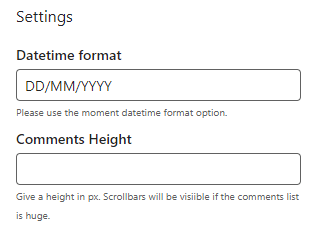
- Datetime format – DD/MM/YYYYProfile Picture rounded – Enabled
- Navigation – Enabled
- Attachments – Disabled
- Library – Not selected
- Allowed Files – image/*,.pdf,.doc,.docx,.xls,.xlsx,.ppt,.pptx
- Max file size – 1 MB (can be selected to a max of 10 MB)
- Reply to comments – Enabled
- Email to notify the reply – Disabled
- Edit Comments – Disabled
- Delete own comments – Disabled
- Upvoting of comments – Enabled
- @Mentions – Disabled
- Email to notify the mentions – Disabled
- Hashtags – Disabled
- Document Preview – Disabled
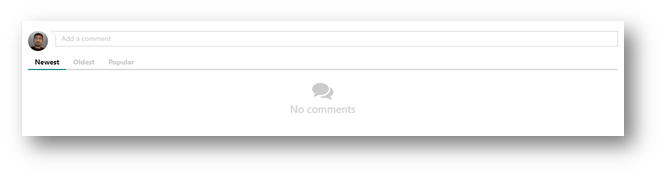
Datetime Format
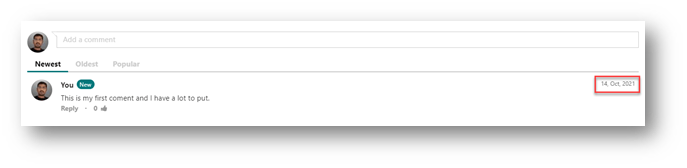
The date and time of the comments created by the user. It will be shown for each comment, some of the formats are shown below and you can use your own format based on the momentjs.

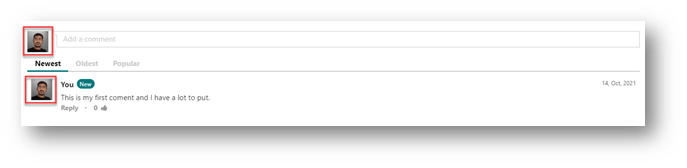
Picture Format
This setting will allow you to choose whether the picture has to be displayed in rectangle or round shaped.

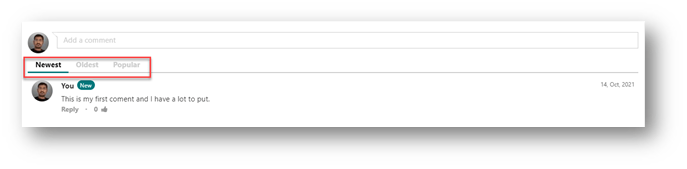
Navigation
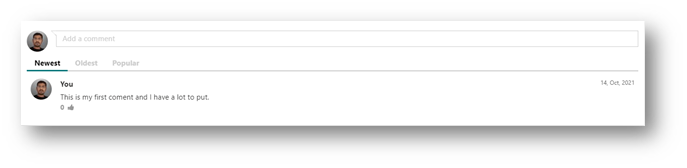
This setting will allow you to choose whether the below tabs has to be enabled or not
- Newest
- Oldest
- Popular
- Attachments (if attachments are enabled)
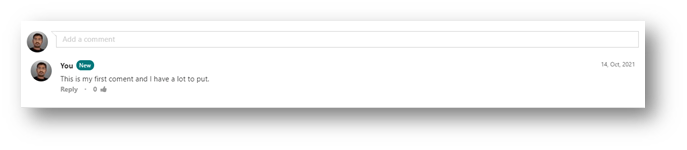
Reply & Email
The reply setting will allow you to reply to your own comments as well as others. ‘Email to notify’ setting will send email to the users who got replies to their comments.

Below is the email when someone replied

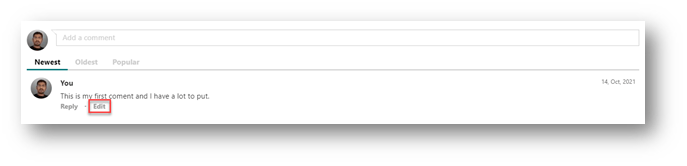
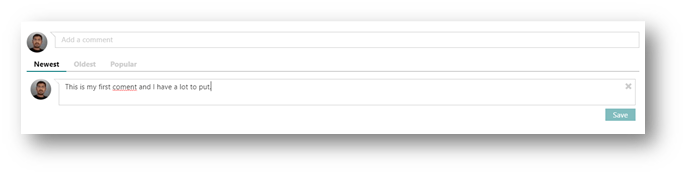
Edit Comments
This setting will allow the users to edit their comments once posted.
Delete Comments
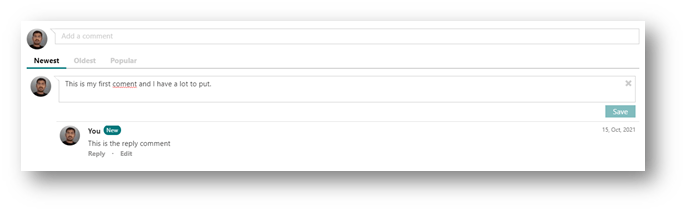
This setting will allow the users to delete their comments. They can only delete the comments that doesn’t have any replies. Also, the delete button will be visible only when the Edit setting is enabled and while editing the comments.

Since there is a reply to the comment, the delete action is not visible.
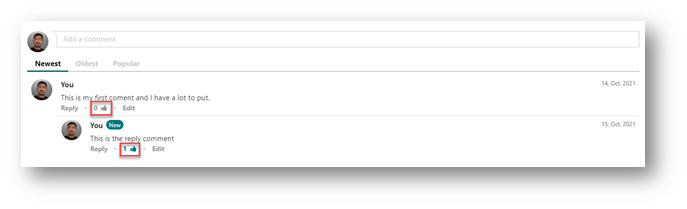
Upvoting
This setting will allow the users to like or unlike the comments
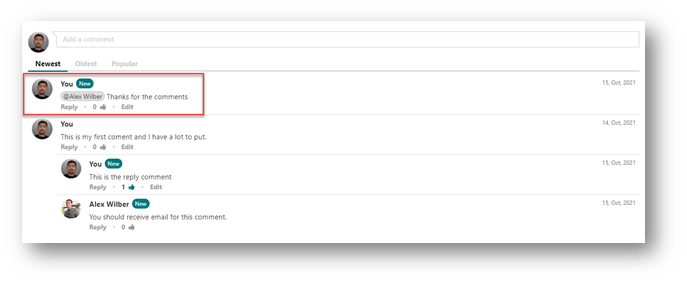
@Mentions & Email
This setting will allow the users to mention other users who already have access to the current SharePoint site. When they key in @ and then a letter then the users will be displayed for selection. When the email setting is enabled, emails will be sent to the users when they are mentioned.


Below is the email sent to the users mentioned, it can be single or multiple users. Each user will get an individual email.

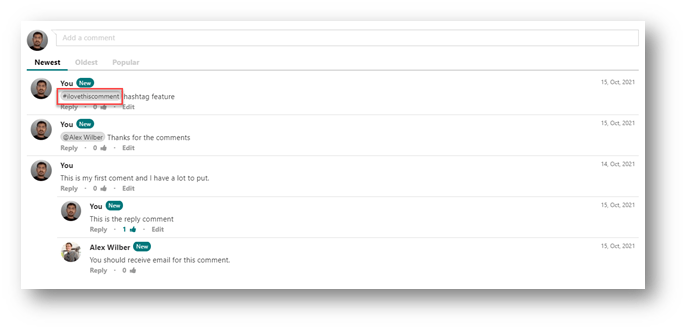
Hashtags
This setting will allow the users to include hashtags.
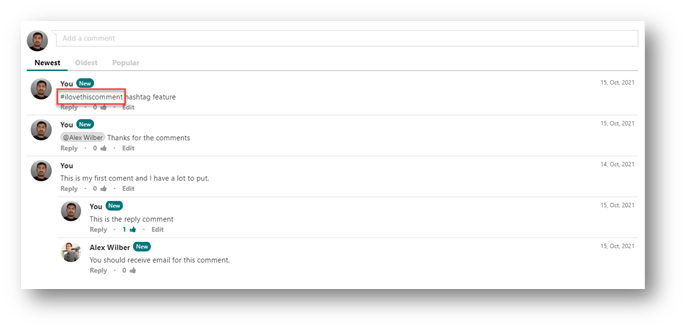
Once the feature is enabled
Attachments
This setting will allow the users to attach a file as a comment. To use this setting there are other settings that has to be configured
- Library – You must select a document library where the files are stored.
- Allowed files – You must include the file extensions that are allowed to attach. By default, some of the extensions are allowed and you can always append more extensions separated by comma
- Max File size – Maximum file size allowed to attach. The size unit used here is MB. By default, its allowed to upload 1MB and you can choose up to 10MB.
Note: You can also use the combination of Navigation setting to see only the attachments.


Below error message will appear if the file that you are trying to upload is not allowed because of the extension or it exceeds the file size.

If you have enabled the attachment property, but haven’t selected the document library then the below message will be shown

Document Preview
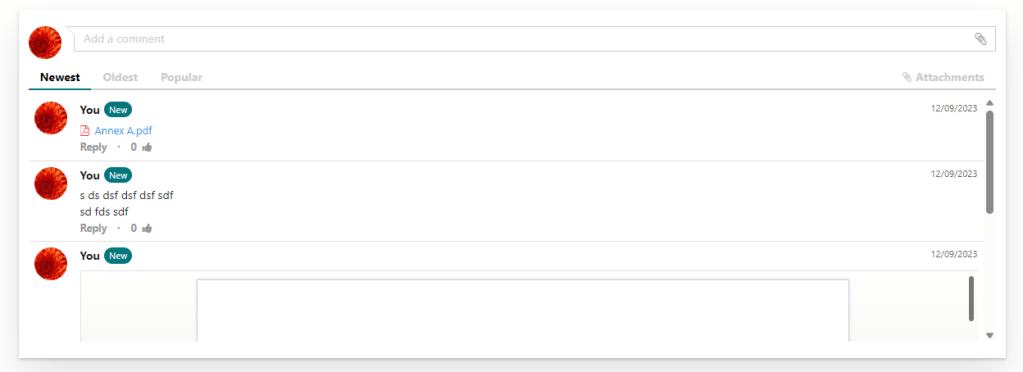
This setting will allow the users to preview the document in the comments section without navigating to a separate tab or download the file to view. If the setting is not enabled then a link to the document will be displayed, it will either open in the browser or download based on the browser compatibility.
Note: All the office documents will leverage on the online viewer to open the documents.

Versions
2.0.0.0
Delete Issue
Version 1.0.0.0 has some issue on the delete which makes some users unable to post comment if a comment is deleted. The Issue is fixed in the latest version. No need to do any changes or changes for the latest version, just enable the delete option from the web part properties to enable delete feature for the web part.
Comments Height
This is a web part property which allows the web part to maximize its height to the value provided. If there are more comments then there will be a slim scroll which will allow the users to scroll through all the comments.
Support
Please email to SUDHARSAN_1985@LIVE.IN if you have any trouble installing or configuring this add-in.
 Knowledge Share
Ah cool! Hopefully others are using that too. Thanks for letting me know. Glad you’re enjoying the site! https://wosgroup.com/genhyp/
LikeLike
aston777 Comment for every line is not needed. You can write comments at the top of your function or a method explaining what a function/method is doing
LikeLike
This app is great – it provided the functionality we needed as our site admin has disabled the use of page comments on Communication site templates. The comment feature is exactly what we need to manage our employee ideas site. I did have a slight issue (which turns out it was a configure issue, not a fault with the app) but I reached out to Sudharsan who was more than happy to assist.
I can recommend this app.. now looking at his others!
LikeLiked by 1 person
This app is great – it provided the functionality we needed as our site admin has disabled the use of page comments on Communication site templates. The comment feature is exactly what we need to manage our employee ideas site. I did have a slight issue (which turns out it was a configure issue, not a fault with the app) but I reached out to Sudharsan who was more than happy to assist.
I can recommend this app.. now looking at his others!
LikeLiked by 1 person
Looks very nice. One question: does it support rich text editing? The ask from my users is to be able to have that option.
LikeLike
As of now richtext is not supported. I ll try to add that feature in the upcoming release.
LikeLike
Hi, what is the purpose of pinging a user?I’ve tested it but i don’t get any notification or mail. How am i supposed to know if i got pinged?Is there a way to get a notification for new comments?
LikeLike
Hi, have u enabled email in the webpart properties? U shuld rec email if the property is enabled.
LikeLike
Okay i will test it. I Updated it too from the store. The first install was from spfx webparts github.
Another question. Is there a way to theme it? When i mention someone it is grey in grey and the username ist not readable. Or does it correlate with the site theme?
LikeLike
It use the SharePoint theme colors.
LikeLike
Mails are working now. Thank You.
But the Link in the mail starts with null/sites…. and is not clickable
Ist there a way to get this working?
LikeLike