Hi Friends, in this post, we are gonna see how we can leverage Brand Colors feature in SharePoint Brand Center. We will also cover the important aspects of using Brand Colors, why we need to use and what are all the benefits of using Brand Colors.
What are SharePoint Brand Colors?
The SharePoint Brand Colors are a specified set of colors designated for use in SharePoint environments to ensure visual consistency and brand recognition. These colors are carefully chosen and documented in the SharePoint Brand Center, where their respective color codes are listed, including hex codes and other relevant specifications. These Brand Colors are instrumental in creating a consistent, accessible, and engaging user experience, ultimately benefiting both the organization and its end users.
Why use SharePoint Brand Colors?
- Unified Visual Identity
- Ensures a cohesive visual identity across all SharePoint sites.
- Helps users easily recognize and associate content with the brand.
- Reduces cognitive load by maintaining consistent color schemes.
- Makes navigation more intuitive and seamless.
- Consistent Brand Presentation
- Helps maintain a unified and professional appearance across all SharePoint sites and materials.
- Critical in establishing and reinforcing the brand identity.
- Makes the brand instantly recognizable to users and stakeholders.
- Accessibility Assurance
- Official brand colors are selected for both aesthetic appeal and accessibility.
- Chosen to meet accessibility standards such as WCAG.
- Ensures content is readable and usable by all users, including those with visual impairments.
- Promotes an inclusive digital environment.
- Inclusive Design Standards
- Selected with accessibility in mind.
- Ensures content is accessible to all users, including those with visual impairments.
- Aligns with accessibility standards such as WCAG, advocating for inclusivity and readability.
- Enhanced User Experience
- Consistent use of brand colors enhances overall user experience.
- Creates a more organized and professional appearance.
- Builds trust and confidence in the brand.
- Reflects the brand’s commitment to quality and attention to detail.
- Seamless User Interaction
- Contributes to a cohesive user experience.
- Creates a seamless and intuitive interface.
- Makes it easier for users to engage with the content.
- Efficient Design Workflow
- Adhering to SharePoint Brand Colors streamlines design processes.
- Designers and developers can refer to a standardized set of colors.
- Reduces time and effort spent on deciding which colors to use.
- Increases efficiency and ensures alignment with the brand’s visual identity.
Psychological Impact of Colors
Emotions: Colors can evoke specific emotions and perceptions. For example, blue often conveys trust and professionalism, while green can suggest growth and harmony.
Brand Perception: The choice of colors can significantly influence how a brand is perceived. Consistent use of official brand colors helps build a positive and strong brand image.
Steps to use Brand Colors and Themes
Setting up Brand Colors is just the first step in designing the theme. We will see how to setup the colors and how to use those colors in creating the theme. Microsoft has made it incredibly user-friendly and straightforward for designers to utilize the Brand Center for creating branding materials.
Please go through Introduction to SharePoint Brand Center to know more about SharePoint Brand Center and how to activate it.
Navigate to the SharePoint Brand Center, you should have an option to add colors. You should be able to see Add Colors or Click on the list of colors section if there are some colors already added.

When you click on the Add Colors or Brand Colors section, you should be able to view the below screen and cilck Add a color to add a new color.

For selecting the theme, 3 colors are required (Primary, Text & Background). You can add all those colors pre-defined so that when the department admins would like to create a different theme for their department, they can choose the colors from these brand colors without deviating from the organization colors.

You can choose color using the color picker or directly use the Hex code. Give a title to your color and also you can choose whether the chosen color can be used to create the theme or not by setting the Visible property. Once all done, click Save.
Once you had saved all the colors, click on SharePoint or Viva Connections under Apply your brand section to add the theme. Click Add theme.
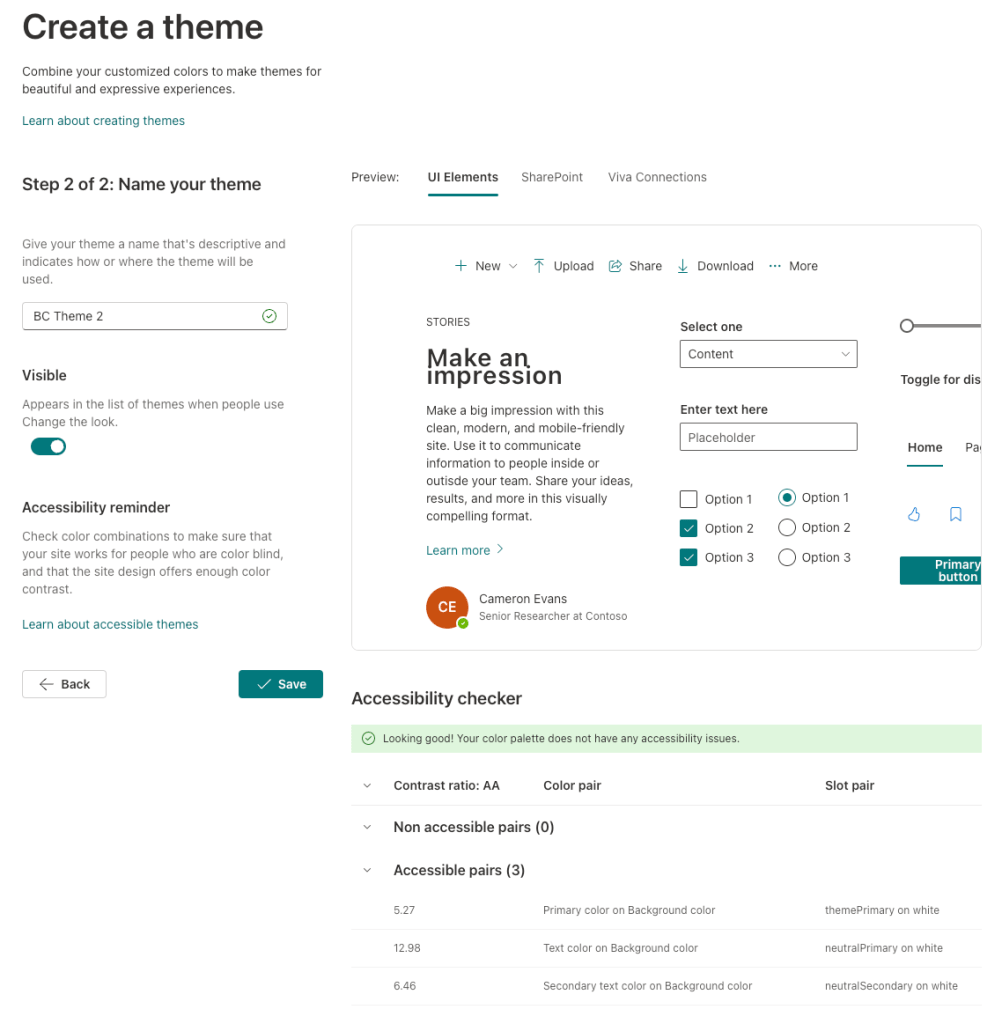
On Create a theme page, you should be able to choose the below to setup your theme. The most interesting part is that once you chose the colors, you can view how the controls with the selected colors appear for custom web parts, look & feel of SharePoint and Viva Connections on the right section. This will give you a overall view of your theme before saving it and make it available to the sites for selection. All the colors mentioned below can be selected from the pre-defined colors or you can create a new color from this screen.

Once you had selected the colors, click on Next. Here you can give a name for your theme and choose whethe the theme should be visible for selection or not.
Note: Please make sure to check the accessibility issues. This makes your brand color accessible to everyone including the visual impaired users.
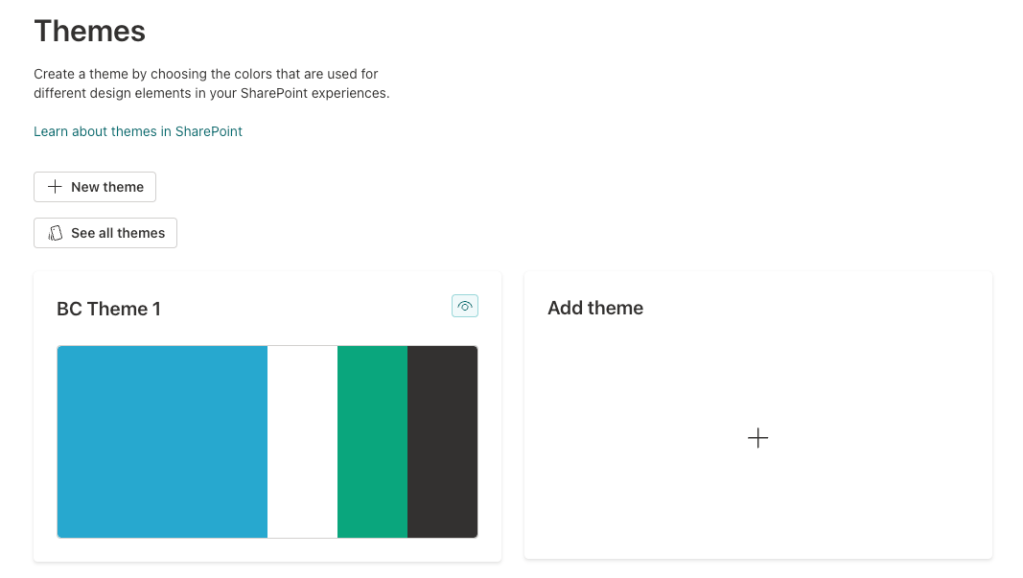
Once the theme is saved, you should be able to view the list of themes like the below

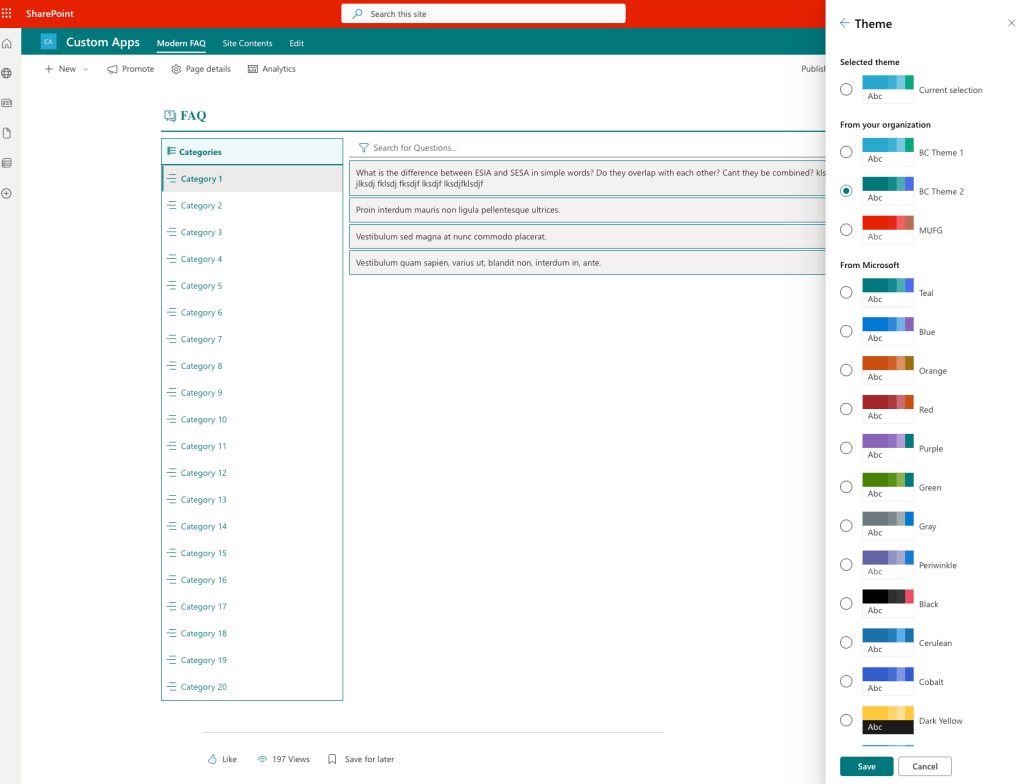
The below screenshot shows how the theme is available to the site and when chosen, the theme is applied to the entire SharePoint site and also for demo, I had shown Modern FAQ, one of my custom SPFx web part which use the theme colors.
Conclusion
In conclusion, adhering to SharePoint Brand Colors is essential for maintaining brand consistency, ensuring accessibility, and enhancing the overall user experience. By following the official guidelines and using the designated color palette, organizations can create visually appealing and inclusive SharePoint sites that effectively communicate their brand identity.
In my next article, let us see how to we use Fonts in the Brand Center. I hope you had learned something from my article, I appreciate if you give a rating or feedback.
Happy Sharing…
 Knowledge Share
Pingback: Brand Fonts Using SharePoint Brand Center | Knowledge Share
Pingback: How to use Brand Fonts in SPFx Web part | Knowledge Share
How to delete or export as JSON the theme from Brand Center?
LikeLike
Hi, as of now there is no option to export the theme using Brand Center. Maybe in future, we may have that option. We may also need to check the CLI for SharePoint Online or from PnP for options to export or read the brand. I hope there are some commands to read the custom theme from the site. We cannot delete the colors or fonts once created, but we can make it visible or hidden from the end users from selecting the same.
LikeLike