Introduction
Hi friends, in this post we are going to learn on how we can use Power Automate to get the current logged in user groups and based on that to get the custom roles defined in the SharePoint List.
Note: The flow which we are going to see can be used independently or in combination with Power Apps to get the groups and roles.
Pre-requisites
- Multiple SharePoint groups (permission levels can be any)
- Different roles (each role will be mapped to one or more SharePoint groups)
- Custom list to store the Roles and SharePoint Groups
I had a list named PA Test List with the following list columns
- Title – Default field
- SPGroups – People or Groups (Allow selection of groups, multiple selection allowed)
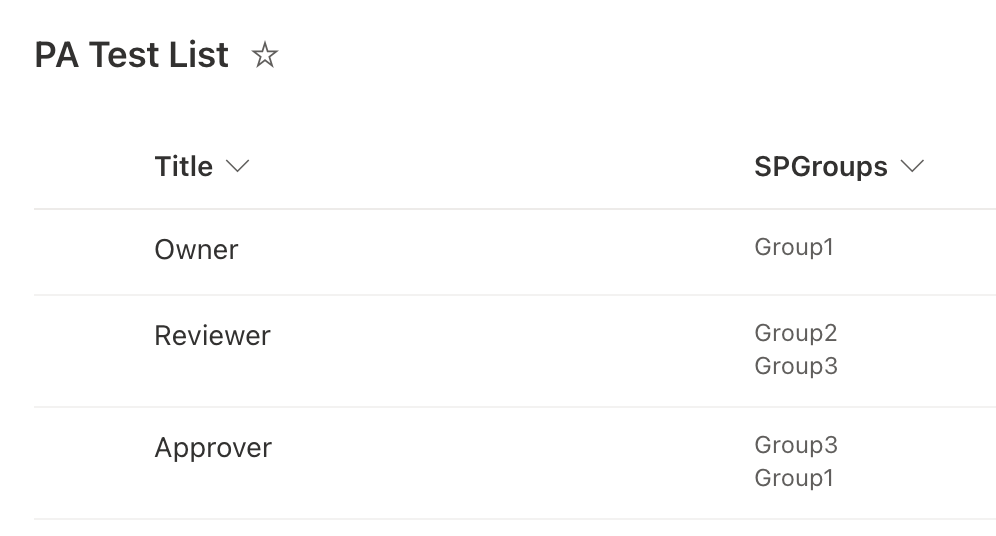
I have few roles mapped to the SharePoint groups. You have a flexibility of mapping one role with multiple groups. Most organizations will have groups based on the department or division but the roles could be common to the organization. Instead of creating some duplicate items for the same role but different groups, we can use the multiple selection of groups.
Flow actions
Now let us dive in to each individual flow actions configured.
1. Trigger
Here in my flow, I had used the PowerApps trigger which will receive the input from PowerApps and based on the input the rest of the actions will be executed.
LoginEmail – The current logged in user email will be the input to the flow


2. Variables initialization
We need some variables to store the user groups and roles
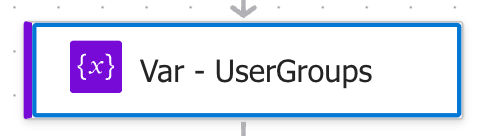
UserGroups – Used to store the SharePoint groups that the user is member of. We have used the Array type and initialized with empty array.

3. Request to SharePoint
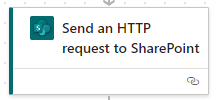
We are gonna use the action named Send an HTTP request to SharePoint to get the groups that the logged in user is member of. We are using the REST api to get the groups and we need to send the logged in user email from the trigger output action.
_api/web/siteusers/getByEmail(‘@{triggerBody()?[‘text’]}’)/groups

4. Condition
We need to use the action named Condition to check whether the user is member of any SharePoint groups or not. We can only proceed if the user is a member of any SharePoint groups. From here all the actions will be configured in the condition True outcome. You have to use the condition below to check the count is greater than 0 or not.
length(body(‘Send_an_HTTP_request_to_SharePoint’)[‘d’][‘results’])
5. Apply to Each
Since the user can be present in multiple groups, we have to check each group for its mapped role. Its based on the application to choose the role with higher privileges. Use the code below for the Apply to each action
body(‘Send_an_HTTP_request_to_SharePoint’)[‘d’][‘results’]

Below are the actions that has to be added inside the Apply to each action
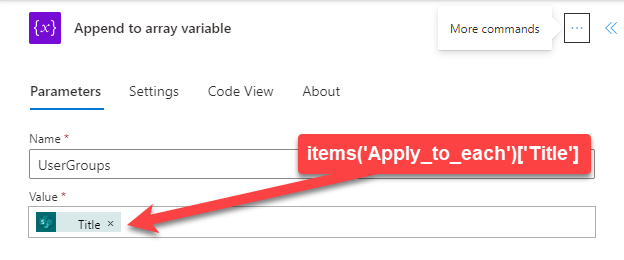
Append to array variable: Using this action we are gonna append the group tile to the variable named UserGroups
items(‘Apply_to_each’)[‘Title’]
Get Items: Using this action to get the items from the Roles list that has the SharePoint group. I am using the OData query to query the items from the people picker field named SPGroups.
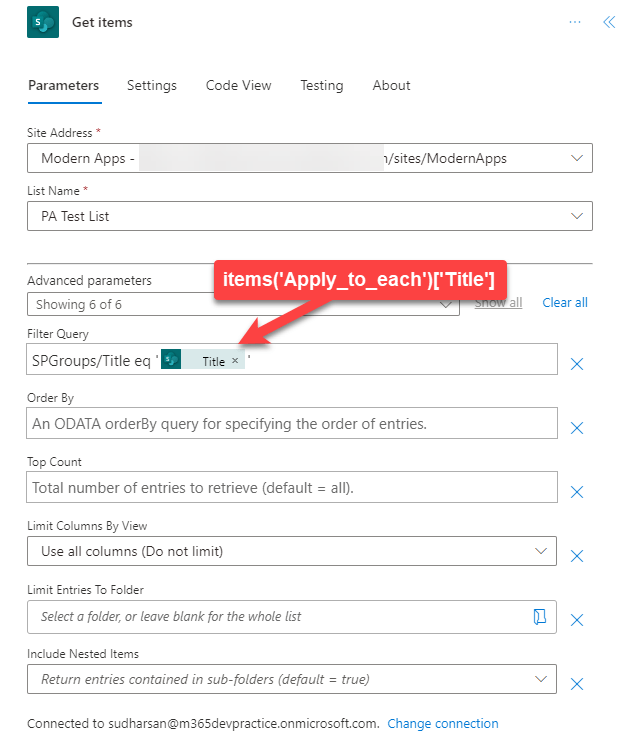
Condition: Use this action again to check whether there are any items return from the above action or not. If returned, all the below actions are placed under the True section.

Apply to Each: Since one or more roles can associated to the SharePoint groups so use this action to capture each role.
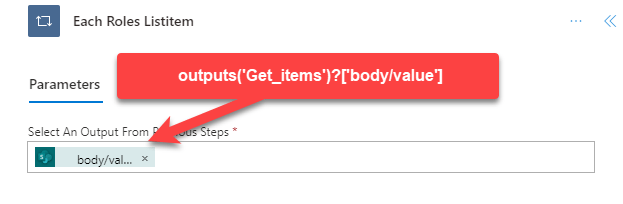
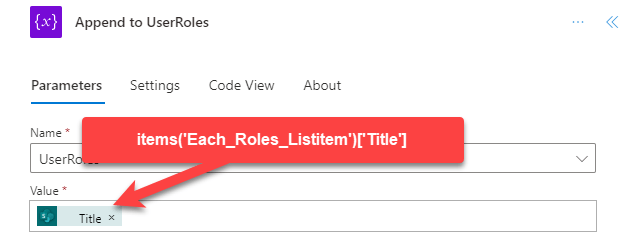
Append to UserRoles: Use this action inside the above action and append the user roles to the array variable named UserRoles
Below actions are to be placed outside the first Condition block
Condition 2: To check whether we got any roles in the UserRoles variable. If there are roles, then use the compose action to get a comma separated string value and return to the PowerApps or any other applications.

Full Flow

Conclussion
I hope you have learned something or any action in the Power Automate on how to use it. Also, this is one way of checking the user groups and roles if it is stored in SharePoint list and also how to trigger and receive reponse from Power Automate in Power Apps.
Happly flowing…
 Knowledge Share
This saved my day–thank you very much
LikeLike