Introduction
Hi friends,
I wrote an article few days back on how to use impersonation or elevated permission to read items (without having access to the list items) from SharePoint list in the SPFx web part using Azure Function and with the API call.
In this article we will learn an alternate way to impersonate or elevate permission. Using Azure Function will give more flexibility and at the same time requires a developer or coding knowledge to manage the code and for deploying the azure function requires Azure subscription, Azure Function app, Storage etc which involves lot of services and money.
An alternate solution is to use Power Automate which is very easy to create and maintain, coding knowledge is not mandatory, no deployment required. But, you need a premium triggers to handle the impersonation.
You can refer the below article on Why there is a need to elevate the permission and also the permission constraints in SPFx. Elevated Permissions in SPFx Web part
Power Automate Creation
Follow the below steps to create a Power Automate which will retrieve the list items based on the Site Url, List Name and Filter.
- Create an Instant Cloud flow using the trigger When an HTTP request is received
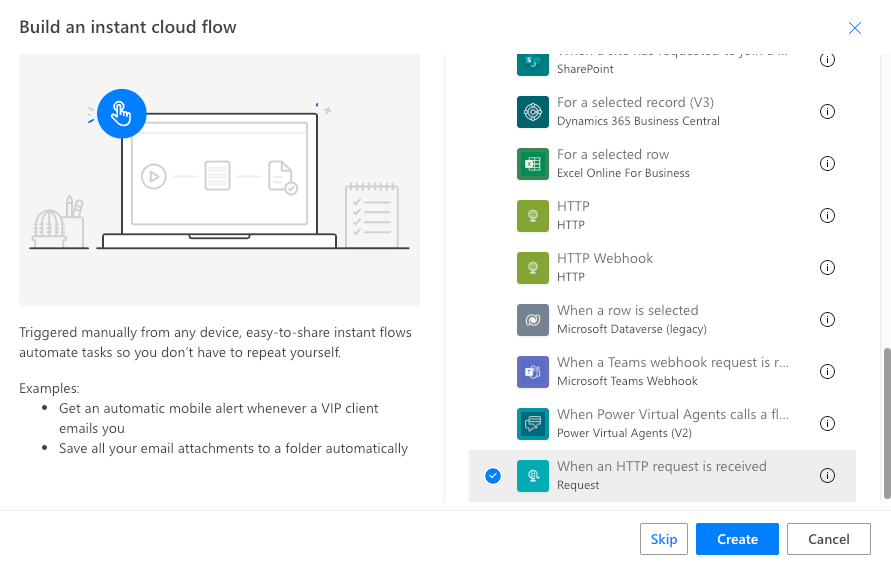
- Configure the below properties
- Who can trigger the flow? Choose Anyone for if the data is not sensitive and anyone can see the data.
- HTTP Url – This will be automatically generated and we will use this URL to get the list items from SPFx web part.
- Method – Choose the method as POST
- Request body JSON Schema – Since we intend to use Site Url, List name, Filter, use the below schema
{
    "type": "object",
    "properties": {
        "siteurl": {
            "type": "string"
        },
        "listname": {
            "type": "string"
        },
        "filter": {
            "type": "string"
        }
    }
}

2. Add Get Items action from the SharePoint category and configure the properties as shown. Site Address, List Name, Filter Query are configured with the schema values that is configured in the trigger.

3. Add Response action and configure the below properties as shown
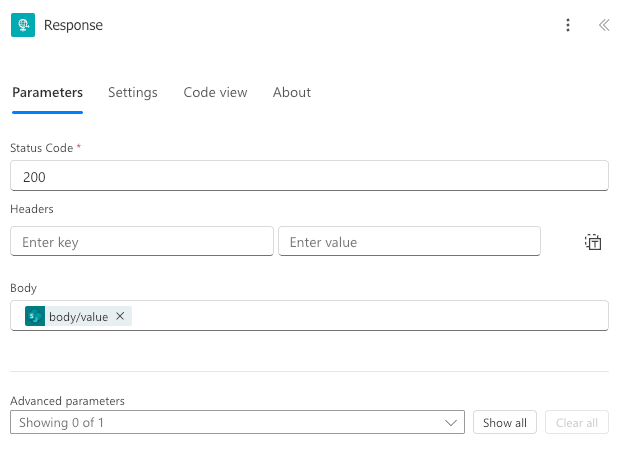
Save the Power Automate and note down the HTTP request URL.
SPFx Code
Use the below code to trigger the flow either using the button action or the web part load.
const demo = async () => {
        // function to call power automate flow
        const response = await fetch(<Power Automate HTTP Request URL>, {
            method: 'POST',
            headers: {
                'Content-Type': 'application/json'
            },
            body: JSON.stringify({
                "siteurl": "<Site URL>",
                "listname": "<List title>",
                "filter": "<Filter query>"
            })
        });
        if (response.ok) {
            const data = await response.json();
            console.log("Response from Power Automate:", data);
        }
        else {
            console.error('Error:', response.statusText);
        }
    };
Modify the below properties to execute the code with the actual values
- Power Automate HTTP Request URL
- Site URL
- List title
- Filter query
When the above method is executed, the flow will be triggered and the response will be returned from the flow to you SPFx web part in the json format.
Since we are running the SharePoint Get Items action under the Service account which has permissions to read items from the list but the end users cannot read directly navigating to SharePoint.
Conclussion
I hope you had learned something new on how to elevate the permission in SPFx web part using Power Automate which is very easy to create and modify, no maintenance is required. The only requirement is that you need to have a premium connection as well as the Power Automate user or flow license if your usage is heavy else the free transactions should be enough.
See you soon in a different article. Please support my article by subscribing and give some feedbacks which will be an encouragement for me to post some unique features and tricks.
Happy Coding…
 Knowledge Share