Introduction
Hi friends, in this post, let us see about the site branding feature which was recently released in SharePoint Online. SharePoint Branding with Brand Center became popular couple of months ago, which extend the SharePoint capability to create themes and fonts across the organization without the need for technical tools like powershell etc.
What is Site Branding?
Site branding enables us to create theme and fonts only for a specific site. This feature allows the organization to open the branding for departments or divisions and enter into a new world of branding with different themes and fonts for different sites.
Site Branding User Experience
Site Branding can be accessed from the Settings menu.

Once you click on the above mentioned link, you will be redirected to the branding page which looks like the brand center but with limited feature.
Note: Site branding link is accessible only to the Site Owners. Users who are part of the Site Owners group can access the link.

You will have the below options in the Site Branding and let us see each individual feature in detail.
- Themes
- Font Packages
- Copy from another site
Themes
This section will display the list of themes that was already created and also provide an option to create a new theme. Click on the New theme button to create a new theme for this site. The Create a theme page will be same like the brand center but the data that is displayed will be based on the Brand Center.

Since it is a site branding, the preview is available only for SharePoint. If the site is connected to the Viva then you will have the option to preview for SharePoint and Viva Connections.
Step – 1, Below are the properties that should be selected for a theme to be saved
- Primary Color
- Text Color
- Background Color
- Dark Theme
- Accent Color
For the above properties, you can choose the suggested color, brand colors or even add a new color on the fly. Once the colors were chosen, there is an Accessibility checker to make sure the chosen colors do not have any accessibility issues.
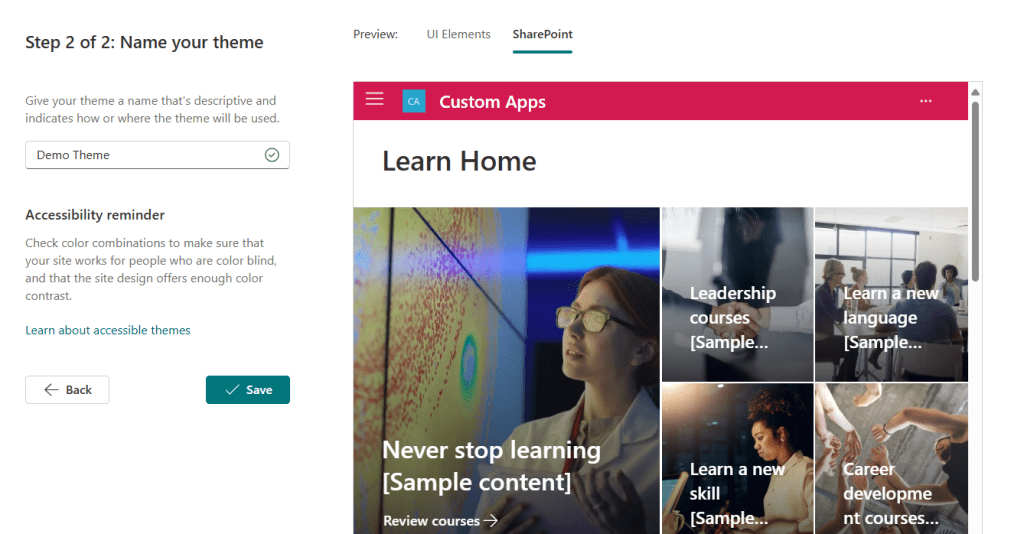
Step – 2, you can specify a name and preview on how it looks in SharePoint. Click Save to save the theme.
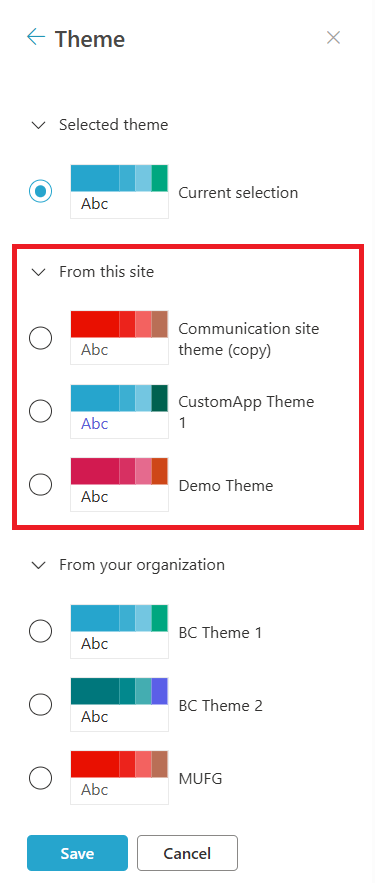
Once the theme is saved, go home and choose Change the look from the settings menu to look for the newly created theme under the section From this site.
Font packages
This section will display the list of Font packages that are already created and also will allow the Site Owners to create a new font package.

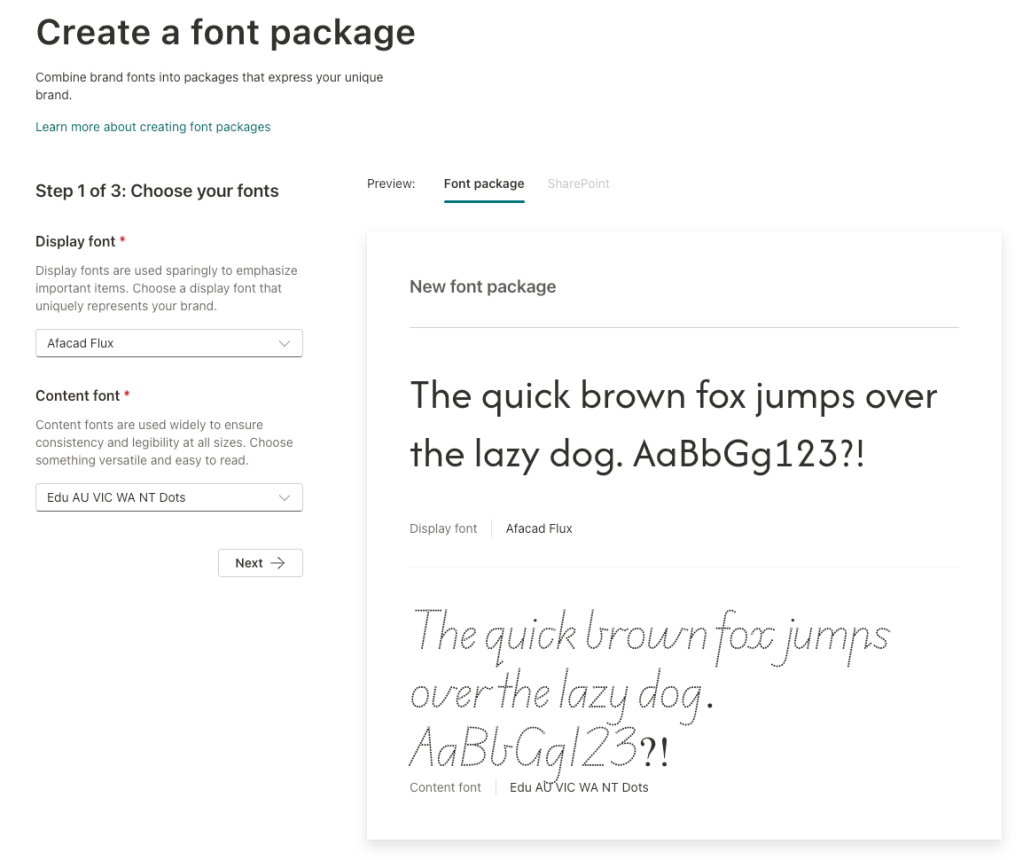
Click New font package to create a new font package for the site. Below are the 2 properties that are required to be chosen to create a new font package
- Display font
- Content font
Note: You will have a dropdown to choose the font. The fonts are populated from the Brand Center and you cannot add new font using the Site level branding by the site owners.
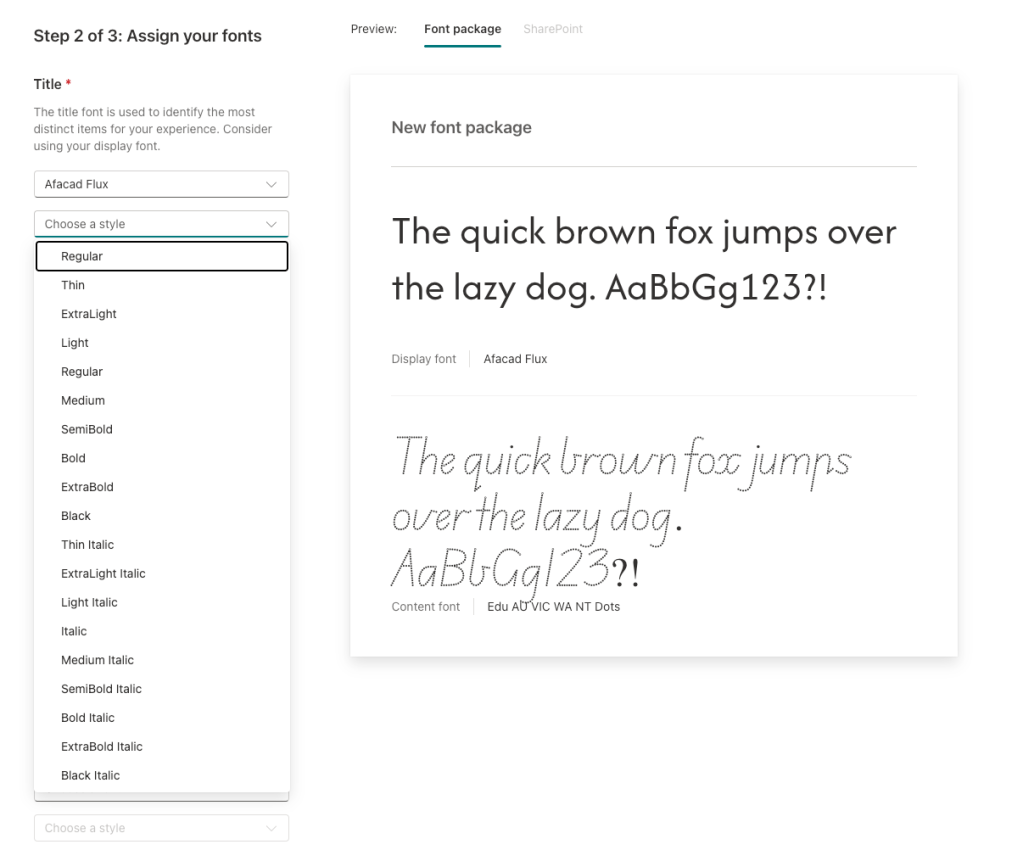
Step – 2 to choose the font for the below properties along with the font style
- Title
- Headline
- Body
- Interactive
Step – 3 to give a unique name to the custom font package and you will also be able to preview the fonts in SharePoint.

Copy from another site
This option lets us to copy the current applied theme of a site to our site. You can search for a site using the title or enter the full URL of the site.
Note: This does not copy all the themes that are created on that site, only the current applied theme on the selected site will be copied.

Once the site is chosen, on the right side there will be a preview of the selected site. Next is the Choose branding to copy, which will allow us to copy theme and font packages based on the availability of the branding. In the below screenshot, I dont have font packages created on the selected site, so the option is disabled and a message is provided. So, only the theme option was enabled. Give a unique theme name and click on Save Copy to copy the theme.
Once the theme is copied, it will be added to your site theme collection. This option is more flexible when we need to use the colors and theme of another site, without having to create everything from scratch.

Things to Remember
- Only Site Owners will have access to the Site level branding
- Font packages are enabled only when the organization brand center is enabled and uploaded some custom fonts. You will not be able to upload custom fonts directly in the site level branding. This is restricted to avoid malicious content and for security reasons.
- Site level branding cannot be applied to the sites associated with the Hub.
- Site level branding can be applicable for the Hub root site and not for the sites associated with the hub.
- Viva connection preview is available only if the site is connected to the Viva connections.
- As of now, there are no options to disable Site Branding. Restrict the feature using Site Owners group.
- Copy from source site feature copies the selected site current theme and not the custom themes created in the selected site.
- As of now there is no option to edit the theme created in Site branding. It can only be renamed or deleted.
Conclusion
In summary, Site Branding is a major enhancement in SharePoint online which provides lots of flexibility for the end users to leverage on the themes and brand colors and gave freedom to bring their creativity live.
I really appreciate if you can take sometime to provide feedback or any suggestions via comments.
Happy Sharing…
 Knowledge Share