Introduction
Hi friends, in this blog post we will learn how to use PnP Core SDK to communicate to SharePoint online in a secure way by using a certificate and app permission that will have more control over the application execution.
What is PnP Core SDK?
The PnP.Core SDK is a modern .NET SDK designed to work with Microsoft 365 services, primarily focusing on SharePoint Online and Microsoft Teams. It provides a unified object model that is agnostic to the underlying APIs being called, simplifying development by abstracting the complexities of different APIs.
Pros & Cons
Pros:
- Unified Object Model: Simplifies development by providing a single interface for different APIs.
- Cross-Platform Support: Works on Windows, macOS, Linux, and mobile OS like Android and iOS.
- Community Support: Actively maintained by an open-source community, ensuring continuous improvements and updates.
- Modern Development Techniques: Uses .NET Standard 2.0, .NET 5, and later versions, ensuring compatibility with modern development practices
Cons:
- No SLA: As an open-source component, it doesn’t come with a Service Level Agreement (SLA) from Microsoft.
- Learning Curve: Developers new to the SDK might need time to get accustomed to its structure and usage
Why we need to use it?
The PnP.Core SDK is essential for developers working with Microsoft 365 services because it:
- Simplifies Development: By providing a unified interface, it reduces the complexity of dealing with multiple APIs.
- Enhances Performance: Uses batching support and retry logic to handle service throttling, improving performance.
- Promotes Best Practices: Encourages the use of modern development techniques and standards
Pre-requisites
There are some pre-requisites required to use PnP Core SDK. Let us see the step by step process on the pre-requisites as well as some configuration that are required for our application to communicate to SharePoint in a secure way.
Create Self-Signed Certificate
A certificate is required for our authentication purpose. It can be a real certificate issued by the certificate authority or can be a self-signed certificate. For the demo purpose, we will use self-signed certificate.
Open a PowerShell and execute the below commands to create a certificate and the details that are required to configure the certificate in our application.
New-SelfSignedCertificate -CertStoreLocation "cert:\LocalMachine\My" -dnsname "PnPCoreDemo" -NotAfter (Get-Date).AddYears(2)
Once the above command is executed, a new certificate with the name PnPCoreDemo with an expiry date of 2 years from when the command is executed will be created and added to the Local machine certificate store. The output of the above command will display the Thumbprint and Subject as shown below.
Note: You have to note down the Thumbprint which is required for our application configuration


$pwd = ConvertTo-SecureString -String "pnpcoredemo" -Force -AsPlainText

Export-PfxCertificate -cert cert:\localMachine\my\A08D58645665775D81787C0295B6FF1D2DF2E58B  -FilePath "D:\Ode\Workouts\PnPCoreDemo\PnPCoreDemo.pfx" -Password $pwd

Export-Certificate -Cert cert:\localMachine\my\A08D58645665775D81787C0295B6FF1D2DF2E58B -FilePath "D:\Ode\Workouts\PnPCoreDemo\PnPCoreDemo.crt"
Create a complex password to export the created certificate as .pfx and .crt. The pfx file can be installed on the server or other machines where our application has to be executed. The crt file is required for our app registered in Azure AD (Entra ID). For the export of certificates, we need to use the thumbprint that is generated in the first command.
Azure App Registration
Register an application as a Single Tenant in the Microsoft Entra ID as per the below screenshot. Note down the below values
- Application (client) ID
- Directory (tenant) ID

Upload the crt file that we exported in the previous step on the Certificates & Secrets section from the left navigation on the app that is created above

Next is to assign the permission based on our application requirement. For our demo application, we are going to read list and items so I have assigned just the read permission. The permission can be from Graph or SharePoint. PnP Core SDK will automatically check for permission and transact accordingly and we can also configure whether we need to use graph api or SharePoint API. Make sure to grant consent to the permission if it is required.

We are done with the pre-requisites. Next is to create a console application and configure the authentication to communicate with SharePoint Online site.
Project Creation & Configuration
I am using VS 2022. Create a Console App with C# selected as shown below

My project name is PnPCoreDemo
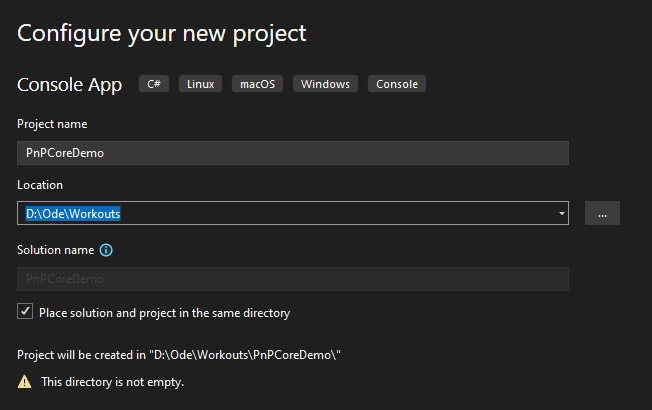

First step is to add the json configuration file with the name as appsettings.json

Update the json configuration file with the below code. Replace the Client Id, Tenant Id, Thumbprint and the site url that we noted on the earlier steps to complete the configuration.
"PnPCore": {
  "DisableTelemetry": "true",
  "HttpRequests": {
    "UserAgent": "ISV|Contoso|ProductX",
    "Timeout": "100",
    "SharePointRest": {
      "UseRetryAfterHeader": "true",
      "MaxRetries": "10",
      "DelayInSeconds": "3",
      "UseIncrementalDelay": "true"
    },
    "MicrosoftGraph": {
      "UseRetryAfterHeader": "true",
      "MaxRetries": "10",
      "DelayInSeconds": "3",
      "UseIncrementalDelay": "true"
    }
  },
  "PnPContext": {
    "GraphFirst": "true",
    "GraphCanUseBeta": "true",
    "GraphAlwaysUseBeta": "false"
  },
  "Credentials": {
    "DefaultConfiguration": "x509Certificate",
    "Configurations": {
      "x509Certificate": {
        "ClientId": "<Application (client id)>",
        "TenantId": "<Tenant Id>",
        "X509Certificate": {
          "StoreName": "My",
          "StoreLocation": "CurrentUser",
          "Thumbprint": "<Certificate Thumbprint>"
        }
      }
    }
  },
  "Sites": {
    "ModernApps": {
      "SiteUrl": "<Site Url>",
      "AuthenticationProviderName": "x509Certificate"
    }
  },
  "Logging": {
    "LogLevel": {
      "Default": "None"
    },
    "Console": {
      "LogLevel": {
        "Default": "None"
      }
    }
  }
}
In the above settings, we would be able to configure the below
- Whether to use MS Graph API or SharePoint REST API
- Logging
- Whether to display the verbose information or not
- If using MS Graph API, whether to use beta version or not
- Type of authentication to SharePoint Site
Next step is to install the required Nuget packages. Below are the packages that are required.
- Microsoft.Extensions.Hosting – v9.0.0
- PnP.Core.Auth – v1.14.0
Now, we need to create a new class file named Auth.cs to configure the dependency injection of PnP Services and also to configure PnP Authentication using the json configuration file. Below is the code for Auth.cs
using Microsoft.Extensions.DependencyInjection;
using Microsoft.Extensions.Hosting;
using Microsoft.Extensions.Logging;
using PnP.Core.Auth.Services.Builder.Configuration;
using PnP.Core.Services.Builder.Configuration;

namespace PnPCoreDemo
{
    internal class Auth
    {
        public static async Task<IHost> Initialize(string envName)
        {
            var host = Host.CreateDefaultBuilder()
            .UseEnvironment(envName)
            // Configure logging
            .ConfigureLogging((hostingContext, logging) =>
            {
                logging.ClearProviders();
            })
            .ConfigureServices((hostingContext, services) =>
            {
                // Add the PnP Core SDK library services
                services.AddPnPCore();
                services.Configure<PnPCoreOptions>(hostingContext.Configuration.GetSection("PnPCore"));
                services.AddPnPCoreAuthentication();
                services.Configure<PnPCoreAuthenticationOptions>(hostingContext.Configuration.GetSection("PnPCore"));
            })
            // Let the builder know we're running in a console
            .UseConsoleLifetime()
            // Add services to the container
            .Build();

            await host.StartAsync();

            return host;
        }
    }
}
Below is the code for Program.cs file.
using Microsoft.Extensions.DependencyInjection;
using PnP.Core.Model.SharePoint;
using PnP.Core.Services;
using PnPCoreDemo;

async Task Main()
{
    try
    {
        var host = await Auth.Initialize("");
        using (var scope = host.Services.CreateScope())
        {
            var pnpContextFactory = scope.ServiceProvider.GetRequiredService<IPnPContextFactory>();
            using (var ctx = await pnpContextFactory.CreateAsync("ModernApps"))
            {
                var myList = ctx.Web.Lists.GetByTitle("FAQQuestions", p => p.Title, p => p.ItemCount);
                Console.WriteLine($"Item Count: {myList.Title} - {myList.ItemCount.ToString()}");
            }
        }
    }
    catch (Exception ex)
    {
        Console.WriteLine(ex.ToString());
    }

}

Main();

Console.ReadLine();
Below are the code walkthrough
- Initializing the PnP Services with the configuration file
- Getting the PnP Context factory object
- From the PnP Context factory object, creating the context scope for the selected site
- Using the context, get the list named FAQQuestions and then display its title and item count. You can choose the list that exists on your site.
Before executing the code, it is mandatory to do the following
- Since we have uploaded the crt file with the password, we need to install the pfx file with the password to the current user certificate store as configured in the json configuration file.
- Make sure to choose Copy always for Copy to Output Directory property for the appsettings.json file to be copied to the debug folder along witht the generated exe.
Once the above is done and when you press F5, you should be able to see the output like below. The output varies based on the list that is available in your site.

Conclussion
I hope I was more detailed on the steps to use PnP Core SDK to communicate with SharePoint. I will be focussing on some best practice on loading large lists, paging the list using PnP Core SDK in my future blog posts.
I welcome your suggestions and feedback which will help me in contributing the information that help others to complete their tasks or achieve the business process.
https://github.com/sudharsank/PnPCoreDemo
Happy Coding…
 Knowledge Share
Pingback: Elevated Permissions in SPFx Web part | Knowledge Share