Hi Friends, in this article we are gonna see how we can leverage the Brand Fonts in our custom SPFx web part. In my earlier article, we delve in to the usage of SharePoint Brand Center, how to setup, how to use it with Brand Colors & Brand Fonts and what are their impacts and how best we can utilize them. If you are not sure where to start, you can always go through the below article for starting your journey with SharePoint Brand Center.
- Intro to SharePoint Brand Center
- Using Brand Colors from SharePoint Brand Center
- Brand Fonts & Font Package
Project Setup
You can refer Part 1 post on the creation of the SPFx project and installing all the dependencies. I had used SPFx version 1.18.0 but the code works for the latest version too.
Focus on the Code
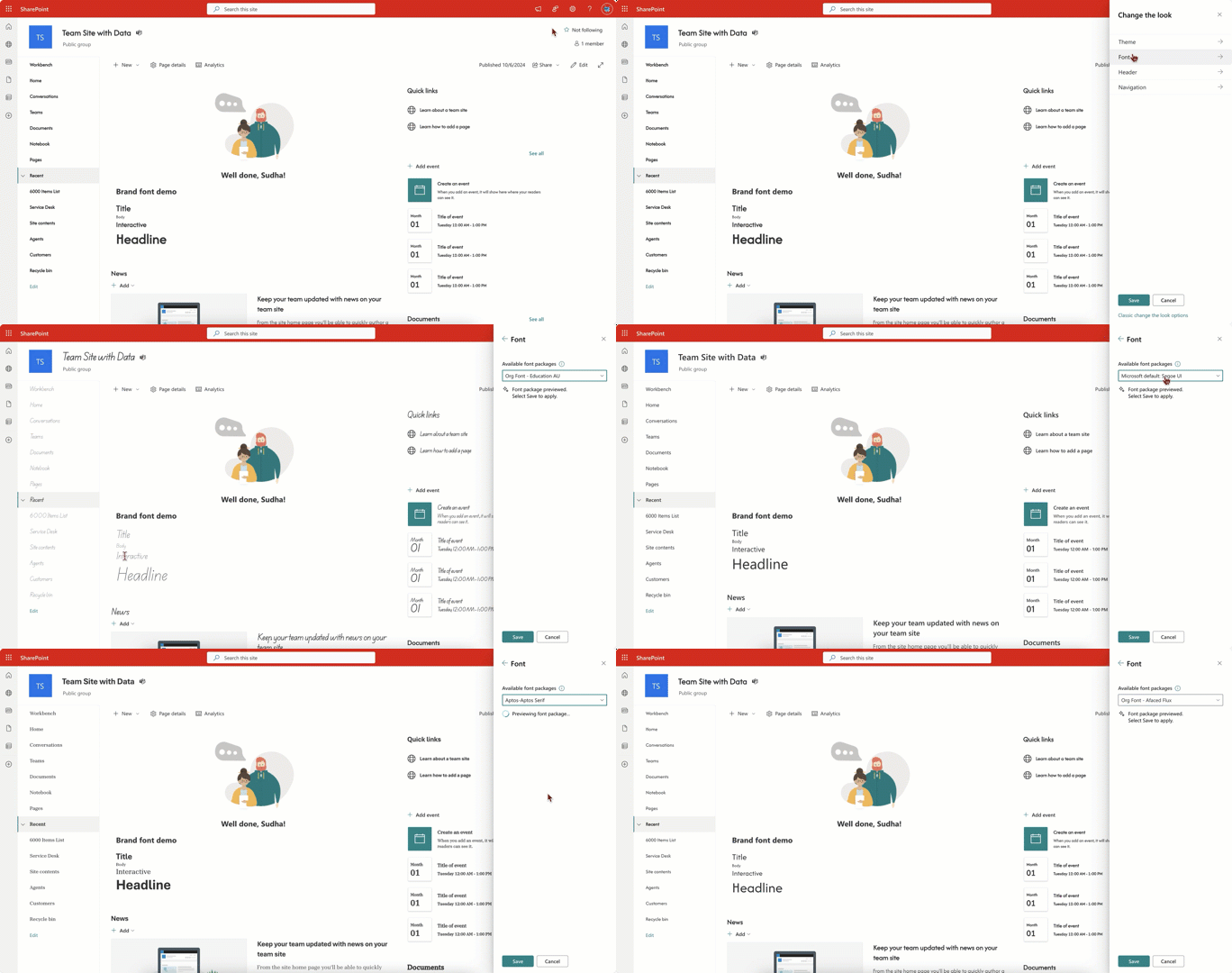
In this demo code, we will be creating some different style class and different div using the css class. The css class will make use of the Brand Fonts variable and will also show you how it reflects the changes to fonts. Once you implement this change in the web part, when you update the font the custom web part fonts too change along with the other content changes that will reflect in the current page.
I have created a web part named BrandFontDemo. Below is the code for BrandFontDemo.tsx file
import * as React from 'react';
import styles from './BrandFontDemo.module.scss';
import type { IBrandFontDemoProps } from './IBrandFontDemoProps';
import { escape } from '@microsoft/sp-lodash-subset';

export default class BrandFontDemo extends React.Component<IBrandFontDemoProps, {}> {
  public render(): React.ReactElement<IBrandFontDemoProps> {
    const {
      description,
      isDarkTheme,
      environmentMessage,
      hasTeamsContext,
      userDisplayName
    } = this.props;

    return (
      <section className={`${styles.brandFontDemo} ${hasTeamsContext ? styles.teams : ''}`}>
        <div className={styles.welcome}>
          <img alt="" src={isDarkTheme ? require('../assets/welcome-dark.png') : require('../assets/welcome-light.png')} className={styles.welcomeImage} />
          <h2>Well done, {escape(userDisplayName)}!</h2>
        </div>
        <div>
            <h2>Brand font demo</h2>
            <div className={styles.bcTitle}>Title</div>
            <div className={styles.bcBody}>Body</div>
            <div className={styles.bcInteractive}>Interactive</div>
            <div className={styles.bcHeadline}>Headline</div>
        </div>
      </section>
    );
  }
}
Not many changes to the above code. As mentioned earlier, added some div with css class mapped at the end.
Below is the css styles added to BrandFontDemo.module.scss file at the end
.bcTitle {
    font-family: var(--fontFamilyCustomFont1700, var(--fontFamilyBase));
    font-weight: var(--fontWeightCustomFont1700);
    font-size: var(--fontSizeBase600);
}
.bcBody {
    font-family: var(--fontFamilyCustomFont200, var(--fontFamilyBase));
    font-size: var(--fontSizeBase200);
}
.bcInteractive {
    font-family: var(--fontFamilyCustomFont500, var(--fontFamilyBase));
    font-weight: var(--fontWeightCustomFont500);
    font-size: var(--fontSizeBase500);
}
.bcHeadline {
    font-family: var(--fontFamilyCustomFont1300, var(--fontFamilyBase));
    font-weight: var(--fontWeightCustomFont1300);
    font-size: var(--fontSizeHero900);
}
CSS plays a major role when it comes to the Brand Font rendering. You can refer to Brand central font slot reference for the custom font token and the default token. You can use it as a reference to refer the token in our custom web part.
Note: When we are referring the custom font token, it has to always starts with –fontFamily
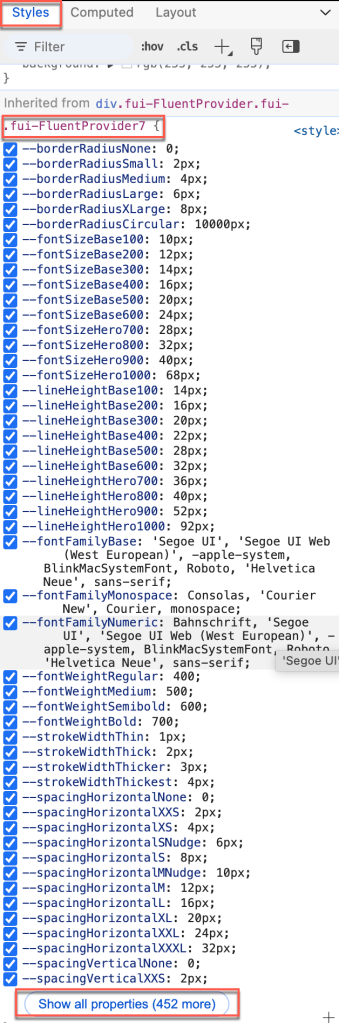
If you would like to know the list of variables that can be used in the custom solution, then follow the below steps. You should be able to use 400+ style variables.
- Navigate to the SharePoint page
- Inspect any of the text shown in the page or any text from your custom web part
- In the styles tab, scroll to the bottom and you can find the full list of available variables.
Below is the short video of the same demo web part showing the usage of Brand Fonts and how it reflects along with the other OOB web parts when the font is changed.
Conclusion
In summary, we saw how to leverage the Brand Fonts in our custom SPFx web part using the css class. Also, I have shared the tip on style variable list and how you can get the full list of variables to use in SPFx. I hope you have learned something and please try it out and let me know if you are having any issues or clarifications.
I really appreciate if you guys can like or comment the article. Your suggestions and feedbacks are very important.
Happy Sharing…
 Knowledge Share