Introduction
Hi friends, in this post we are going to see how we can use the Fluent UI details list to show the documents tagged with Enterprise Keywords with the grouping enabled on the details list. We are going to achieve this using SharePoint Framework web part with the combination of PnP library. In my last post on How to show Documents tagged with Managed Metadata in a DetailsList – SPFx | Knowledge Share (spknowledge.com) I had covered some information on what is Managed Metadata, its key components and benefits along with how we can use the Managed Metadata tagging to the documents.
Pre-requisites
Here we are going to use the Enterprise Keywords settings in the list to tag the documents and to display the documents based on the tagging in a group. Let us see some basic information about the Enterprise Keywords and then will jump in to the code.
What is Enterprise Keywords?
It is one features in SharePoint that allows users to tag content, such as documents, pages, or list items with relevant keywords. These keywords can be used to categorize and organize content in a collaborative and user-driven manner. Enterprise Keywords provide a lightweight and flexible approach to metadata management, encouraging social tagging within the SharePoint environment.
Below are some of the key benefits of using Enterprise Keywords
- User-Driven Tagging: Users can tag content with keywords based on their understanding of the content. This user-driven approach allows for the creation of a folksonomy, where users contribute to the classification of content.
- Shared Across Site Collection: Keywords are shared across the entire site collection. If a keyword is used in one document library, it becomes available for tagging in other libraries within the same site collection. This helps in maintaining consistency in the use of keywords.
- Searchability: Enterprise Keywords enhance the search experience in SharePoint Online. Users can perform keyword searches to find content that has been tagged with specific keywords, making it easier to locate relevant information.
- Integration with Search Refiners: Enterprise Keywords can be used as refiners in search results, allowing users to filter search results based on specific keywords.
Enterprise Keywords vs Managed Metadata Field
Enterprise Keywords provide a user-friendly and flexible approach to metadata tagging with a focus on user-driven folksonomy. On the other hand, Managed Metadata fields offer a more structured, controlled, and standardized taxonomy management solution. The choice between them depends on the organization’s specific requirements, the need for structure and control, and the balance between user flexibility and metadata standardization. In some cases, organizations may even choose to use both features in combination to leverage their respective strengths.
Note: Enterprise Keywords can be activated in List or Library Settings. Once activated, you should be able to see a new field named Enterprise Keywords added to the list and default views.

Focus on the code
You can refer Part 1 post on the creation of the SPFx project and installing all the dependencies. I had used SPFx version 1.18.2 along with @pnp/sp.
Pre-requisites
We just need a Document Library with Enterprise Keywords enabled. There is 1 more extra feature we are gonna add. We are gonna add a link named Show More… on the group header and when the users click on the link, we will navigate them to the search results page with the group header which makes them to search for the particular keyword in a search which will display all the files or items that are tagged with the respective enterprise keyword.
I had created a webpart project named DocsGroupByEntKeyword
For this web part, I am also going to use pnp.config.ts file to make sure the sp object is created with the proper webpart context. Below is the code for pnp.config.ts
import { spfi, SPFI, SPFx as spSPFx } from "@pnp/sp";
import { LogLevel, PnPLogging } from "@pnp/logging";
import { WebPartContext } from "@microsoft/sp-webpart-base";
import "@pnp/sp/webs";
import "@pnp/sp/lists";
import "@pnp/sp/items";

// eslint-disable-next-line no-var
var _sp: SPFI;

export const getSP = (context?: WebPartContext): SPFI => {
	if (context != null) {
		//You must add the @pnp/logging package to include the PnPLogging behavior it is no longer a peer dependency
		// The LogLevel set's at what level a message will be written to the console
		_sp = spfi().using(spSPFx(context)).using(PnPLogging(LogLevel.Warning));
	}
	return _sp;
};
Below is the code for DocGroupByMetaWebPart.ts
import * as React from 'react';
import * as ReactDom from 'react-dom';
import { Version } from '@microsoft/sp-core-library';
import {
    type IPropertyPaneConfiguration,
    PropertyPaneTextField
} from '@microsoft/sp-property-pane';
import { BaseClientSideWebPart } from '@microsoft/sp-webpart-base';
import { IReadonlyTheme } from '@microsoft/sp-component-base';
import { SPFI } from '@pnp/sp';
import * as strings from 'DocsGroupByEntKeywordWebPartStrings';
import DocsGroupByEntKeyword from './components/DocsGroupByEntKeyword';
import { IDocsGroupByEntKeywordProps } from './components/IDocsGroupByEntKeywordProps';
import { getSP } from '../../pnp.config';

export interface IDocsGroupByEntKeywordWebPartProps {
    siteUrl: string;
    keywords: string;
    searchPageUrl: string;
}

export default class DocsGroupByEntKeywordWebPart extends BaseClientSideWebPart<IDocsGroupByEntKeywordWebPartProps> {

    private _isDarkTheme: boolean = false;
    private _environmentMessage: string = '';
    private _currentTheme: IReadonlyTheme | undefined;
    private _sp: SPFI;

    public render(): void {
        const element: React.ReactElement<IDocsGroupByEntKeywordProps> = React.createElement(
            DocsGroupByEntKeyword,
            {
                sp: this._sp,
                isDarkTheme: this._isDarkTheme,
                environmentMessage: this._environmentMessage,
                hasTeamsContext: !!this.context.sdks.microsoftTeams,
                userDisplayName: this.context.pageContext.user.displayName,
                searchPageUrl: this.properties.searchPageUrl,
                siteUrl: this.properties.siteUrl,
                keywords: this.properties.keywords,
                currentTheme: this._currentTheme
            }
        );

        ReactDom.render(element, this.domElement);
    }

    protected onInit(): Promise<void> {
        this._sp = getSP(this.context);
        return this._getEnvironmentMessage().then(message => {
            this._environmentMessage = message;
        });
    }


    private _getEnvironmentMessage(): Promise<string> {
        if (!!this.context.sdks.microsoftTeams) { // running in Teams, office.com or Outlook
            return this.context.sdks.microsoftTeams.teamsJs.app.getContext()
                .then(context => {
                    let environmentMessage: string = '';
                    switch (context.app.host.name) {
                        case 'Office': // running in Office
                            environmentMessage = this.context.isServedFromLocalhost ? strings.AppLocalEnvironmentOffice : strings.AppOfficeEnvironment;
                            break;
                        case 'Outlook': // running in Outlook
                            environmentMessage = this.context.isServedFromLocalhost ? strings.AppLocalEnvironmentOutlook : strings.AppOutlookEnvironment;
                            break;
                        case 'Teams': // running in Teams
                        case 'TeamsModern':
                            environmentMessage = this.context.isServedFromLocalhost ? strings.AppLocalEnvironmentTeams : strings.AppTeamsTabEnvironment;
                            break;
                        default:
                            environmentMessage = strings.UnknownEnvironment;
                    }

                    return environmentMessage;
                });
        }

        return Promise.resolve(this.context.isServedFromLocalhost ? strings.AppLocalEnvironmentSharePoint : strings.AppSharePointEnvironment);
    }

    protected onThemeChanged(currentTheme: IReadonlyTheme | undefined): void {
        if (!currentTheme) {
            return;
        }

        this._isDarkTheme = !!currentTheme.isInverted;
        const {
            semanticColors
        } = currentTheme;
        this._currentTheme = currentTheme;

        if (semanticColors) {
            this.domElement.style.setProperty('--bodyText', semanticColors.bodyText || null);
            this.domElement.style.setProperty('--link', semanticColors.link || null);
            this.domElement.style.setProperty('--linkHovered', semanticColors.linkHovered || null);
        }

    }

    protected onDispose(): void {
        ReactDom.unmountComponentAtNode(this.domElement);
    }

    protected get dataVersion(): Version {
        return Version.parse('1.0');
    }

    protected override get disableReactivePropertyChanges(): boolean {
        return true;
    }

    protected getPropertyPaneConfiguration(): IPropertyPaneConfiguration {
        return {
            pages: [
                {
                    header: {
                        description: strings.PropertyPaneDescription
                    },
                    groups: [
                        {
                            groupName: strings.BasicGroupName,
                            groupFields: [
                                PropertyPaneTextField('siteUrl', {
                                    label: 'Site URL',
                                    multiline: false,
                                    value: this.properties.siteUrl
                                }),
                                PropertyPaneTextField('keywords', {
                                    label: 'Keywords',
                                    multiline: false,
                                    value: this.properties.keywords
                                }),
                                PropertyPaneTextField('searchPageUrl', {
                                    label: 'Search results URL',
                                    multiline: false,
                                    value: this.properties.searchPageUrl
                                })
                            ]
                        }
                    ]
                }
            ]
        };
    }
}
Below are the changes done to the boiler plate code.
- Declared the following properties
- siteUrl – Site from where the documents to be searched
- keywords – Enterprise keywords to search for. Multiple keywords are separated by comma.
- searchPageUrl – Search page to be navigated when the users click on Show More…
- Created PropertyPaneTextField control to capture all the 3 properties defined above.
- To get the sp factory object on the oninit method and then to pass the object along with the above properties to the main component file.
Below is the code for IDocsGroupByEntKeywordProps.ts
import { IReadonlyTheme } from "@microsoft/sp-component-base";
import { SPFI } from "@pnp/sp";

export interface IDocsGroupByEntKeywordProps {
    isDarkTheme: boolean;
    environmentMessage: string;
    hasTeamsContext: boolean;
    userDisplayName: string;
    sp: SPFI;
    currentTheme: IReadonlyTheme | undefined;
    siteUrl: string;
    keywords: string;
    searchPageUrl: string;
}
Below is the code for DocsGroupByEntKeyword.tsx
import * as React from 'react';
import { useEffect, useState } from 'react';
import styles from './DocsGroupByEntKeyword.module.scss';
import type { IDocsGroupByEntKeywordProps } from './IDocsGroupByEntKeywordProps';
import * as _ from 'lodash';
import {
    DetailsList, IColumn, IDetailsGroupRenderProps, IDetailsList, IGroup,
    IGroupDividerProps, Icon, Link, MessageBar, MessageBarType, SelectionMode, Stack
} from '@fluentui/react';
import { GroupedListV2FC } from '@fluentui/react/lib/GroupedList';
import { ISearchQuery, SearchResults } from "@pnp/sp/search";

export interface IDocs {
    Name: string;
    FileUrl: string;
    Keyword: string;
}

const DocsGroupByEntKeyword: React.FC<IDocsGroupByEntKeywordProps> = (props) => {
    const {
        isDarkTheme,
        environmentMessage,
        hasTeamsContext,
        userDisplayName
    } = props;

    const [items, setItems] = useState<any[]>([]);
    const [groups, setGroups] = React.useState<IGroup[]>([]);

    const loadDocuments = async () => {
        let finalDocs: IDocs[] = [];
        const enterpriseKeywordsManagedProperty = "ows_MetadataFacetInfo";
        const pathManagedProperty = "Path";
        const fileExtensionManagedProperty = "FileExtension";
        const keywordsToSearch = props.keywords?.split(',');
        const keywordConditions = keywordsToSearch.map(keyword => `${enterpriseKeywordsManagedProperty}:"${keyword}"`).join(" OR ");

        const siteUrl = props.siteUrl!; // Replace with the URL of the specific site
        const queryText = `(${keywordConditions}) AND ${fileExtensionManagedProperty}:<> AND ${pathManagedProperty}:"${siteUrl}/*"`;

        let searchQuery: ISearchQuery = {
            Querytext: queryText,
            RowLimit: 50,
            SelectProperties: ['Path', enterpriseKeywordsManagedProperty, 'owstaxIdTaxKeyword',
                "DefaultEncodingURL",
                "FileType",
                "Filename",
                "OriginalPath", // Folder path
                "Author", // Document author
                "LastModifiedTime", // Last modified timestamp
                "Created"]
        }
        const results: SearchResults = await props.sp.search(searchQuery);

        // console.log(results.ElapsedTime);
        // console.log(results.RowCount);
        // console.log(results.PrimarySearchResults);
        let searchResults: any[] = results.PrimarySearchResults;
        console.log(searchResults[0][enterpriseKeywordsManagedProperty]);
        searchResults.map((result: any) => {
            props.keywords.split(',').map((key: string) => {
                if(result[enterpriseKeywordsManagedProperty].toLowerCase().indexOf(key.toLowerCase()) >= 0) {
                        finalDocs.push({
                            Keyword: key,
                            Name: result.Filename,
                            FileUrl: result.DefaultEncodingURL
                        });
                }
            })
        });
        finalDocs = _.sortBy(finalDocs, 'Keyword');
        var groupedDocs = _.groupBy(finalDocs, 'Keyword');
        let docGroups: IGroup[] = [];
        _.map(groupedDocs, (value, groupkey) => {
         docGroups.push({
             key: groupkey,
             name: groupkey,
             count: value.length,
             startIndex: _.indexOf(finalDocs, _.filter(finalDocs, (d: any) => d[`Keyword`] == groupkey)[0]),
             data: _.filter(finalDocs, (d: any) => d[`Keyword`] == groupkey),
             level: 0
         });
        });
        setItems(finalDocs);
        setGroups(docGroups);
    };

    const _onNavigate = (targeturl: string) => {
        window.open(targeturl, '_blank');
    };
    const root = React.useRef<IDetailsList>(null);
    const [columns] = React.useState<IColumn[]>([
        {
            key: 'name', name: 'Name', fieldName: 'Name', minWidth: 100, maxWidth: 200, isResizable: true,
            onRender: (item?: IDocs, index?: number, column?: IColumn) => {
                return (
                    <Link onClick={() => _onNavigate(item.FileUrl)} style={{ marginTop: '3px' }}>
                        {item.Name}
                    </Link>
                );
            }
        },
    ]);

    const _openSearchPage = (keyword: string): void => {
        if (props.searchPageUrl) window.open(`${props.searchPageUrl}/files?q=${keyword}`, '_blank');
    };

    const _onToggleCollapse = (props: IGroupDividerProps) => {
        return () => props!.onToggleCollapse!(props!.group!);
    };

    const _onRenderGroupHeader: IDetailsGroupRenderProps['onRenderHeader'] = props => {
        if (props) {
            return (
                <Stack tokens={{ childrenGap: 10 }} horizontal horizontalAlign='start' style={{ marginTop: '10px' }}>
                    <Stack.Item>
                        <Link onClick={_onToggleCollapse(props)} style={{ marginTop: '3px' }}>
                            {props.group!.isCollapsed ? <Icon iconName='CaretRight8' /> : <Icon iconName='CaretDown8' />}
                        </Link>
                    </Stack.Item>
                    <Stack.Item style={{ fontSize: 15 }}>
                        {props.group?.name} ({props.group?.count}) -
                    </Stack.Item>
                    <Stack.Item>
                        <Link onClick={() => _openSearchPage(props.group?.name)} style={{ marginTop: '2px' }}>Show More...</Link>
                    </Stack.Item>
                </Stack>
            )
        }
    };

    useEffect(() => {
        console.log(props);
        (async () => {
            if (props.siteUrl && props.keywords) await loadDocuments();
        })();
    }, []);

    return (
        <section className={`${styles.docsGroupByEntKeyword} ${hasTeamsContext ? styles.teams : ''}`}>
            {props.siteUrl && props.keywords ? (
                <div>
                    <DetailsList
                        componentRef={root}
                        items={items}
                        groups={groups}
                        columns={columns}
                        ariaLabelForSelectAllCheckbox="Toggle selection for all items"
                        ariaLabelForSelectionColumn="Toggle selection"
                        checkButtonAriaLabel="select row"
                        checkButtonGroupAriaLabel="select section"
                        groupProps={{
                            onRenderHeader: _onRenderGroupHeader,
                            groupedListAs: GroupedListV2FC
                        }}
                        selectionMode={SelectionMode.none}
                    />
                </div>
            ) : (
                <MessageBar messageBarType={MessageBarType.warning}>Webpart configuration missing...</MessageBar>
            )}

        </section>
    );

};

export default DocsGroupByEntKeyword;
Below are the changes done to communicate with SharePoint and then to display the documents as grouped with Managed Metadata using DetailsList control from Fluent UI.
- Declared 2 state variables to store the items and the groups

- loadDocuments method to load the documents from the site and with keywords configured in the web part properties. When the Enterprise keyword field is added to the list, the internal name of the field is TaxKeyword, but you will not be able to use the same internal name in the search queries. You should use ows_MetadataFacetInfo which is the managed metadata property that can be used in the search queries. Along with that I have also used the properties like Path & FileExtension.
- I had created the keyword query using the comma separated keywords configured in the web part properties.

- The details list grouping depends on the index of the items array passed to details list. So you have to make sure the array items are properly sorted and make sure the items that required grouping are arranged.
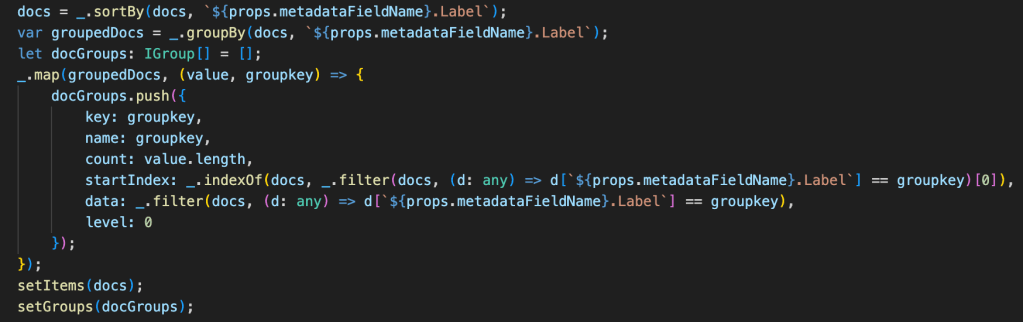
- I had used the custom group header method to customize the group header with different icons and the link to the search page.

- In the useEffect method make sure the web part properties are configured and if it is configured, then call the loadDocuments method to load the documents in a group.

Reference URL
Conclusion
I hope some of you learned how to use the details list with grouping and also how to use Enterprise Keywords and how to use the Enterprise Keywords in the search query. Please feel free to try this code and I welcome your feedbacks and suggestions. There will be a lot of code shared in future with different scenarios.
Please like and comment if you like the article and also subscribe to my blog and my youtube channel.
 Knowledge Share