Introduction
Hi friends, in this post we are going to see how we can use the Fluent UI details list to show the documents tagged with Managed metadata with the grouping enabled on the details list. We are going to achieve this using SharePoint Framework web part with the combination of PnP library.
What is Managed Metadata in SharePoint?
Managed Metadata is one of the most important feature in SharePoint that allows organizations to create, manage, and use a hierarchical collection of centrally managed terms. These metadata are organized as terms and term sets and it can be used across the SharePoint sites, lists, libraries and columns to tag or categorize the content consistently.
Below are the key components of managed metadata:
- Term Store: It’s a centralized repository that stores term sets. Administrators can create and manage term sets using the Term Store Management Tool from SharePoint Admin center or from site collection settings.
- Term Sets: A term set is a collection of related terms. For instance, a term set for an organization might include terms like Divisions, Departments, Product Categories etc.
- Terms: These are individual lables witthin term sets. Each term can have additional properties like synonyms, descriptions, or custom properties associated with it.
Below are some of the benefits of using Managed Metadata:
- Consistency: It enables consistent tagging and categorization of content across the SharePoint farm. This ensures uniformity and makes it easier to search for and manage content.
- Navigation: It can also be used for navigation and filtering, helping users find relevant information more efficiently.
- Search: Terms and their hierarchy can be utilized in search refinement, allowing users to narrow down search results based on specifi categories or tags.
- Content Organization: By using managed metadata in lists or libraries, users can classify and organize content more effectively.
While managed metadata offers some benefits, its essential to acknowledge some potential drawbacks or challenges associated with its implementations.
- Complexity in setup and maintenance: Configuring and managing the Term Store, term sets, and terms might be complex, especially for larger organizations with extensive hierarchies. This complexity can require dedicated resources for maintenance and governance.
- Governance and consistency: Ensuring consistency in the use of metadata across the organization requires careful planning and governance. Without proper governance, different teams or individuals might use inconsistent terms or create redundant ones, leading to confusion and inefficiencies.
- Performance impacts: Using managed metadata extensively in SharePoint could potentially impact performance, especially when dealing with large lists/libraries that heavily rely on metadata columns. Queries involving managed metadata columns might take longer to execute.
- User adoption challenges: Introducing managed metadata requires user training and adoption efforts. Users may find it challenging to understand and consistently apply metadata tags, which could affect the effectiveness of the system.
- Migration complexities: When migrating content from older SharePoint versions or other systems to SharePoint using managed metadata, mapping and preserving the metadata structure can be challenging. Inaccuracies or loss of metadata during migration can affect content findability and organization.
- Limited flexibility: Managed metadata might not fit every scenario or content structure. Some specific use cases or unique organizational structures may require custom solutions, leading to limitations in utilizing managed metadata fully.
Focus on the code
You can refer Part 1 post on the creation of the SPFx project and installing all the dependencies. I had used SPFx version 1.18.2 along with @pnp/sp.
Pre-requisites
We just need a Document Library with Managed Metadata field. There is 1 more extra feature we are gonna add. We are gonna add a link named Show More… on the group header and when the users click on the link, we will navigate them to the search results page with the group header which makes them to search for the particular managed metadata in a search which will display all the files or items that are tagged with the respective managed metadata keyword.
I had created a webpart project named DocGroupByMetadata
For this web part, I am also going to use pnp.config.ts file to make sure the sp object is created with the proper webpart context. Below is the code for pnp.config.ts
import { spfi, SPFI, SPFx as spSPFx } from "@pnp/sp";
import { LogLevel, PnPLogging } from "@pnp/logging";
import { WebPartContext } from "@microsoft/sp-webpart-base";
import "@pnp/sp/webs";
import "@pnp/sp/lists";
import "@pnp/sp/items";

// eslint-disable-next-line no-var
var _sp: SPFI;

export const getSP = (context?: WebPartContext): SPFI => {
	if (context != null) {
		//You must add the @pnp/logging package to include the PnPLogging behavior it is no longer a peer dependency
		// The LogLevel set's at what level a message will be written to the console
		_sp = spfi().using(spSPFx(context)).using(PnPLogging(LogLevel.Warning));
	}
	return _sp;
};
Below is the code for DocGroupByMetaWebPart.ts
import * as React from 'react';
import * as ReactDom from 'react-dom';
import { Version } from '@microsoft/sp-core-library';
import {
	PropertyPaneTextField,
	type IPropertyPaneConfiguration
} from '@microsoft/sp-property-pane';
import { BaseClientSideWebPart } from '@microsoft/sp-webpart-base';
import { IReadonlyTheme } from '@microsoft/sp-component-base';
import { SPFI } from '@pnp/sp';
import * as strings from 'DocGroupByMetaWebPartStrings';
import DocGroupByMeta from './components/DocGroupByMeta';
import { IDocGroupByMetaProps } from './components/IDocGroupByMetaProps';
import { getSP } from '../../pnp.config';

export interface IDocGroupByMetaWebPartProps {
	docLibraryName: string;
	metadataFieldName: string;
	searchPageUrl: string;
}

export default class DocGroupByMetaWebPart extends BaseClientSideWebPart<IDocGroupByMetaWebPartProps> {

	private _isDarkTheme: boolean = false;
	private _environmentMessage: string = '';
	private _sp: SPFI;
	private _currentTheme: IReadonlyTheme | undefined;

	public render(): void {
		const element: React.ReactElement<IDocGroupByMetaProps> = React.createElement(
			DocGroupByMeta,
			{
				sp: this._sp,
				isDarkTheme: this._isDarkTheme,
				environmentMessage: this._environmentMessage,
				hasTeamsContext: !!this.context.sdks.microsoftTeams,
				userDisplayName: this.context.pageContext.user.displayName,
				currentTheme: this._currentTheme,
				docLibraryName: this.properties.docLibraryName,
				metadataFieldName: this.properties.metadataFieldName,
				searchPageUrl: this.properties.searchPageUrl
			}
		);

		ReactDom.render(element, this.domElement);
	}

	protected onInit(): Promise<void> {
		this._sp = getSP(this.context);
		return this._getEnvironmentMessage().then(message => {
			this._environmentMessage = message;
		});
	}

	private _getEnvironmentMessage(): Promise<string> {
		if (!!this.context.sdks.microsoftTeams) { // running in Teams, office.com or Outlook
			return this.context.sdks.microsoftTeams.teamsJs.app.getContext()
				.then(context => {
					let environmentMessage: string = '';
					switch (context.app.host.name) {
						case 'Office': // running in Office
							environmentMessage = this.context.isServedFromLocalhost ? strings.AppLocalEnvironmentOffice : strings.AppOfficeEnvironment;
							break;
						case 'Outlook': // running in Outlook
							environmentMessage = this.context.isServedFromLocalhost ? strings.AppLocalEnvironmentOutlook : strings.AppOutlookEnvironment;
							break;
						case 'Teams': // running in Teams
						case 'TeamsModern':
							environmentMessage = this.context.isServedFromLocalhost ? strings.AppLocalEnvironmentTeams : strings.AppTeamsTabEnvironment;
							break;
						default:
							environmentMessage = strings.UnknownEnvironment;
					}

					return environmentMessage;
				});
		}

		return Promise.resolve(this.context.isServedFromLocalhost ? strings.AppLocalEnvironmentSharePoint : strings.AppSharePointEnvironment);
	}

	protected onThemeChanged(currentTheme: IReadonlyTheme | undefined): void {
		if (!currentTheme) {
			return;
		}

		this._isDarkTheme = !!currentTheme.isInverted;
		const {
			semanticColors
		} = currentTheme;
		this._currentTheme = currentTheme;

		if (semanticColors) {
			this.domElement.style.setProperty('--bodyText', semanticColors.bodyText || null);
			this.domElement.style.setProperty('--link', semanticColors.link || null);
			this.domElement.style.setProperty('--linkHovered', semanticColors.linkHovered || null);
		}

	}

	protected onDispose(): void {
		ReactDom.unmountComponentAtNode(this.domElement);
	}

	protected get dataVersion(): Version {
		return Version.parse('1.0');
	}

	protected getPropertyPaneConfiguration(): IPropertyPaneConfiguration {
		return {
			pages: [
				{
					header: {
						description: strings.PropertyPaneDescription
					},
					groups: [
						{
							groupFields:[
								PropertyPaneTextField('docLibraryName', {
									label: 'Document library name',
									multiline: false,
									value: this.properties.docLibraryName
								}),
								PropertyPaneTextField('metadataFieldName', {
									label: 'Metadata Field name',
									multiline: false,
									value: this.properties.metadataFieldName
								}),
								PropertyPaneTextField('searchPageUrl', {
									label: 'Search results URL',
									multiline: false,
									value: this.properties.searchPageUrl
								})
							]
						}
					]
				}
			]
		};
	}
}
Below are the changes done to the boiler plate code.
- Declared the following properties
- docLibraryName – To display the documents from this document library in a grouped manner
- metadataFieldName – Managed metadata field to group.
- searchPageUrl – Search page to be navigated when the users click on Show More…
- Created PropertyPaneTextField control to capture all the 3 properties defined above.
- To get the sp factory object on the oninit method and then to pass the object along with the above properties to the main component file.
Below is the code for IDocGroupByMetaProps.ts
import { IReadonlyTheme } from "@microsoft/sp-component-base";
import { SPFI } from "@pnp/sp";

export interface IDocGroupByMetaProps {
	isDarkTheme: boolean;
	environmentMessage: string;
	hasTeamsContext: boolean;
	userDisplayName: string;
	sp: SPFI;
	currentTheme: IReadonlyTheme | undefined;
	docLibraryName: string;
	metadataFieldName: string;
	searchPageUrl: string;
}
Below is the code for DocGroupByMeta.tsx
import * as React from 'react';
import { useEffect, useState, FC } from 'react';
import styles from './DocGroupByMeta.module.scss';
import type { IDocGroupByMetaProps } from './IDocGroupByMetaProps';
import * as _ from 'lodash';
import {
	DetailsList, IColumn, IDetailsGroupRenderProps, IDetailsList, IGroup,
	IGroupDividerProps, Icon, Link, MessageBar, MessageBarType, SelectionMode, Stack
} from '@fluentui/react';
import { GroupedListV2FC } from '@fluentui/react/lib/GroupedList';

const DocGroupByMeta: FC<IDocGroupByMetaProps> = (props) => {
	const {
		isDarkTheme,
		environmentMessage,
		hasTeamsContext,
		userDisplayName
	} = props;

	const [items, setItems] = useState<any[]>([]);
	const [groups, setGroups] = React.useState<IGroup[]>([]);

	const loadDocuments = async () => {
		const query: string = `<View Scope="RecursiveAll"><Query></Query>
									<ViewFields>
										<FieldRef Name='${props.metadataFieldName}'/><FieldRef Name='FileRef'/>
										<FieldRef Name='FileLeafRef'/>
									</ViewFields>
								</View>`
		let docs = await props.sp.web.lists.getByTitle(props.docLibraryName).getItemsByCAMLQuery({ ViewXml: query }, 'FileRef,FileLeafRef');
		docs = _.sortBy(docs, `${props.metadataFieldName}.Label`);
		var groupedDocs = _.groupBy(docs, `${props.metadataFieldName}.Label`);
		let docGroups: IGroup[] = [];
		_.map(groupedDocs, (value, groupkey) => {
			docGroups.push({
				key: groupkey,
				name: groupkey,
				count: value.length,
				startIndex: _.indexOf(docs, _.filter(docs, (d: any) => d[`${props.metadataFieldName}.Label`] == groupkey)[0]),
				data: _.filter(docs, (d: any) => d[`${props.metadataFieldName}.Label`] == groupkey),
				level: 0
			});
		});
		setItems(docs);
		setGroups(docGroups);
	};

	const root = React.useRef<IDetailsList>(null);
	const [columns] = React.useState<IColumn[]>([
		{ key: 'name', name: 'Name', fieldName: 'FileLeafRef', minWidth: 100, maxWidth: 200, isResizable: true },
	]);

	const _openSearchPage = (keyword: string): void => {
		if (props.searchPageUrl) window.open(`${props.searchPageUrl}?q=${keyword}`, '_blank');
	};

	const _onToggleCollapse = (props: IGroupDividerProps) => {
		return () => props!.onToggleCollapse!(props!.group!);
	};

	const _onRenderGroupHeader: IDetailsGroupRenderProps['onRenderHeader'] = props => {
		if (props) {
			return (
				<Stack tokens={{ childrenGap: 10 }} horizontal horizontalAlign='start' style={{ marginTop: '10px' }}>
					<Stack.Item>
						<Link onClick={_onToggleCollapse(props)} style={{ marginTop: '3px' }}>
							{props.group!.isCollapsed ? <Icon iconName='CaretRight8' /> : <Icon iconName='CaretDown8' />}
						</Link>
					</Stack.Item>
					<Stack.Item style={{ fontSize: 15 }}>
						{props.group?.name} ({props.group?.count}) -
					</Stack.Item>
					<Stack.Item>
						<Link onClick={() => _openSearchPage(props.group?.name)} style={{ marginTop: '2px' }}>Show More...</Link>
					</Stack.Item>
				</Stack>
			)
		}
	};

	useEffect(() => {
		(async () => {
			if (props.docLibraryName && props.metadataFieldName) await loadDocuments();
		})();
	}, []);

	return (
		<section className={`${styles.docGroupByMeta} ${hasTeamsContext ? styles.teams : ''}`}>
			{props.docLibraryName && props.metadataFieldName ? (
				<div>
					<DetailsList
						componentRef={root}
						items={items}
						groups={groups}
						columns={columns}
						ariaLabelForSelectAllCheckbox="Toggle selection for all items"
						ariaLabelForSelectionColumn="Toggle selection"
						checkButtonAriaLabel="select row"
						checkButtonGroupAriaLabel="select section"
						groupProps={{
							onRenderHeader: _onRenderGroupHeader,
							groupedListAs: GroupedListV2FC
						}}
						selectionMode={SelectionMode.none}
					/>
				</div>
			) : (
				<MessageBar messageBarType={MessageBarType.warning}>Webpart configuration missing...</MessageBar>
			)}

		</section>
	);

};

export default DocGroupByMeta;
Below are the changes done to communicate with SharePoint and then to display the documents as grouped with Managed Metadata using DetailsList control from Fluent UI.
- Declared 2 state variables to store the items and the groups

- loadDocuments method to load the documents from the configured library in the web part properties. Here I had used the caml query to query all the files in the libary. I had used scope with recursive property to get all the files inside the folders and sub-folders.
- When you use the caml query along with the viewfields attribute, some of the fields may not be pulled in untill you expand the fields. So when calling the getItemsByCamlQuery method with the view xml, I am expanding the FileRef & FileLeafRef field.

- The details list grouping depends on the index of the items array passed to details list. So you have to make sure the array items are properly sorted and make sure the items that required grouping are arranged.
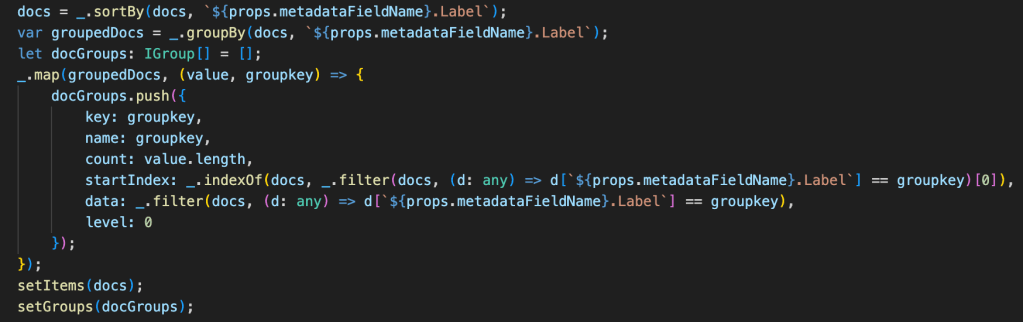
- I had used the custom group header method to customize the group header with different icons and the link to the search page.

- In the useEffect method make sure the web part properties are configured and if it is configured, then call the loadDocuments method to load the documents in a group.

Reference URL
Conclusion
I hope some of you learned how to use the details list with grouping and also how to query the managed metadata field. Please feel free to try this code and I welcome your feedbacks and suggestions. There will be a lot of code shared in future with different scenarios.
Please like and comment if you like the article and also subscribe to my blog and my youtube channel.
 Knowledge Share
Pingback: How to show Documents tagged with Enterprise Keywords in a DetailsList – SPFx | Knowledge Share